Showing posts with label compose action. Show all posts

Saturday, 12 December 2020

Create a approval request in Business process Flow

Create an approval request

In this unit, you'll learn how to build a business-friendly scenario that uses approvals.

In this scenario, anyone who has access to the Microsoft SharePoint list can contribute tweets without knowing anything about Twitter. The social media team can then approve or reject those tweets. Therefore, that team remains in control of the account and the content that goes out to customers.

Step one: Create a SharePoint list for tweets

You'll use a template that starts an approval process whenever a new item is created in a specific list. If the item is approved, a tweet is posted to Twitter. For this unit, you'll change the process by adding steps that update a SharePoint list with the approval response, indicate whether the item was approved, and add any comments that the approver added to the proposed tweet.

First, let's create the SharePoint list.

  1. On your SharePoint site, create a SharePoint list named ContosoTweets.

  2. Open the list, and select Add column.

  3. Select + Add column to add the following columns. Select Save after you create each column.

    • Add a column of the Multiple lines of text type that's named TweetContent. This column will hold the content of the tweets that will be approved later.

    • Add a column of the Date and Time type that's named TweetDate. To select the Date and Time type, select More.

    • Add a column of the Yes/No type that's named ApprovalStatus. The approver can then select Yes or No to approve or reject the tweet.

    • Add a column of the Single line of text type that's named ApproverComments. The approver can then add a comment about the approval status. View of empty table with column titeled: Title, Tweetcontent, Tweetdate, approval status and approval contents

  4. Copy the URL of the SharePoint list. You'll use it when you create the flow.

Step two: Create an approval request flow

  1. Sign in to Power Automate, and then select Approvals.

  2. Select Create approval flow, and then scroll down and select the Post list items to Twitter after approval template.
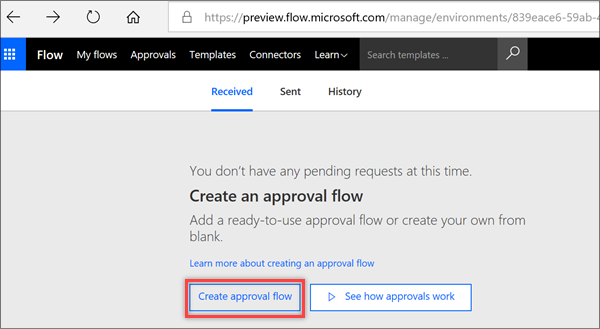
    Create Approval button

  3. Make sure that your account credentials for SharePoint, Approvals, and Twitter are correct, and then select Continue.
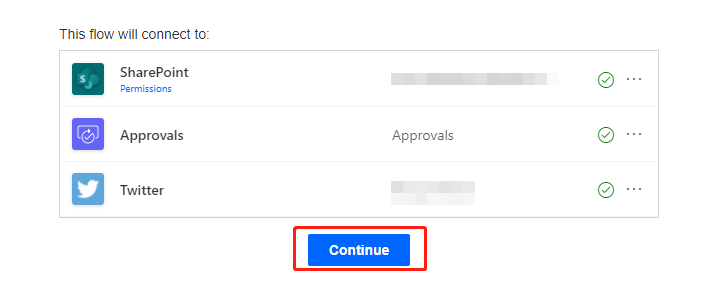
    Linked account credentials

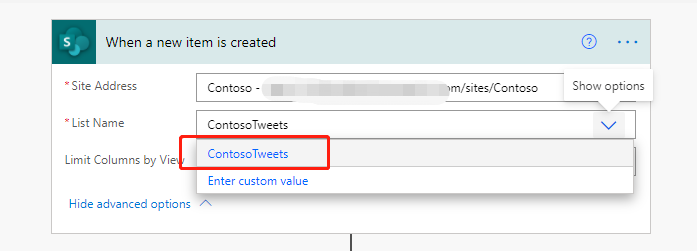
  4. Back in Microsoft Flow, in the When a new item is created action, enter the following values:

    • Site Address: Enter the URL of your team's SharePoint site.

    • List Name: Select ContosoTweets.
      Create new items form list options

  5. In the Start an approval action, select Edit to show all the fields.
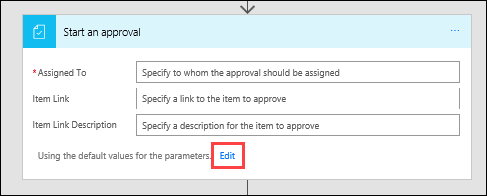
    Start an approval form highilghting Edit

  6. In the Title field, enter New tweet for, and then select Title in the dynamic content list.
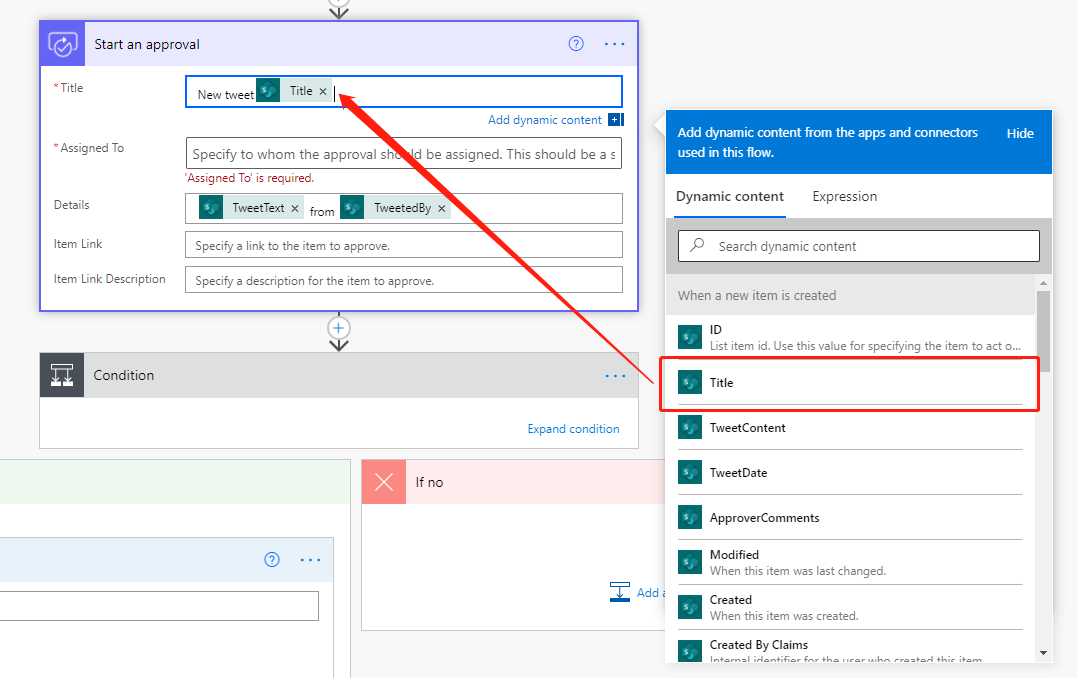
    Title form options

  7. In the Assigned to field, enter and select either your name or the name of a test user.
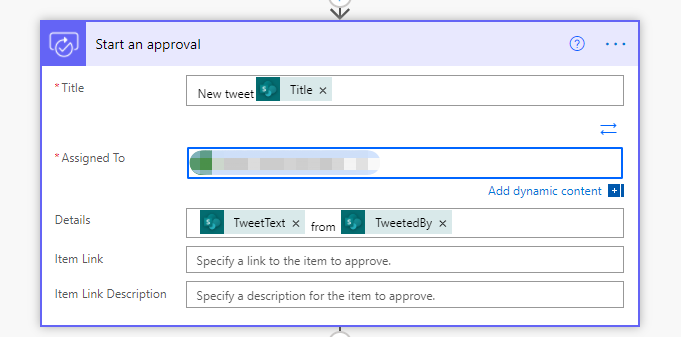
    Assigned to field in creating a new approval

  8. In the Details field, remove the default items, and add TweetContent, TweetDate, and Created by DisplayName from the dynamic content list. Add the words on and by to make the content more readable, as shown here.
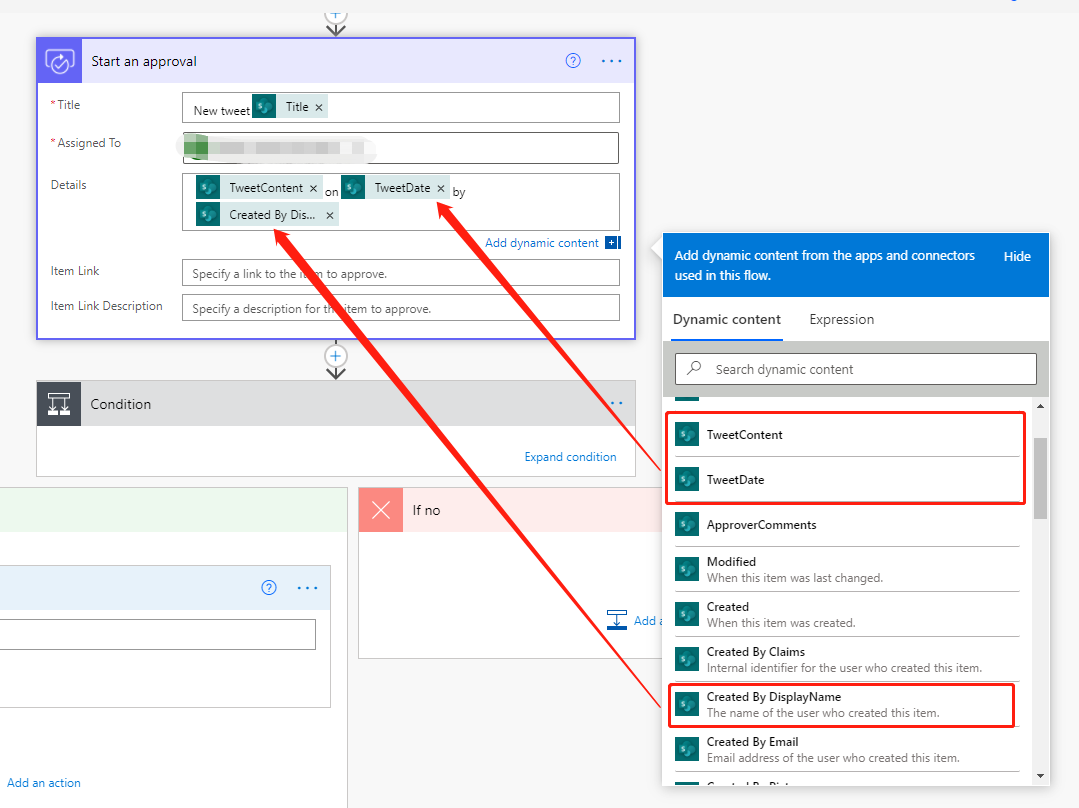
    Customizing details field

  9. In the Item Link field, paste the URL of your SharePoint list, which you copied in the previous procedure. In the Item Link Description field, enter Contoso Tweet List.
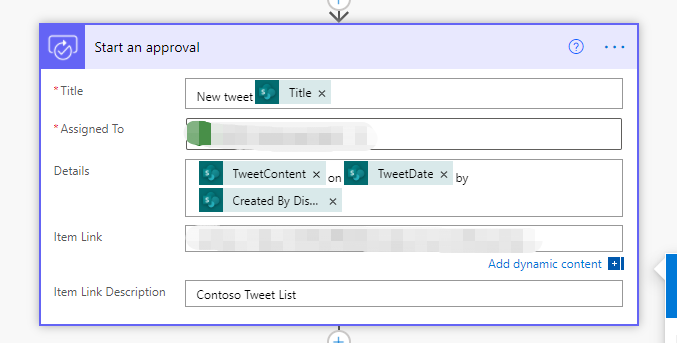
    Item link field

  10. In the Condition action, hover over the IF YES box, select the plus sign (+), and then select Add an action.
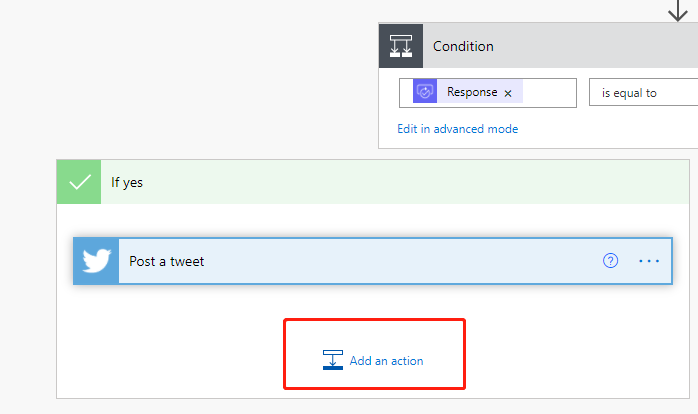
    Editing conditions

  11. Search for update item, select the SharePoint connector, and then select the SharePoint – Update item action.
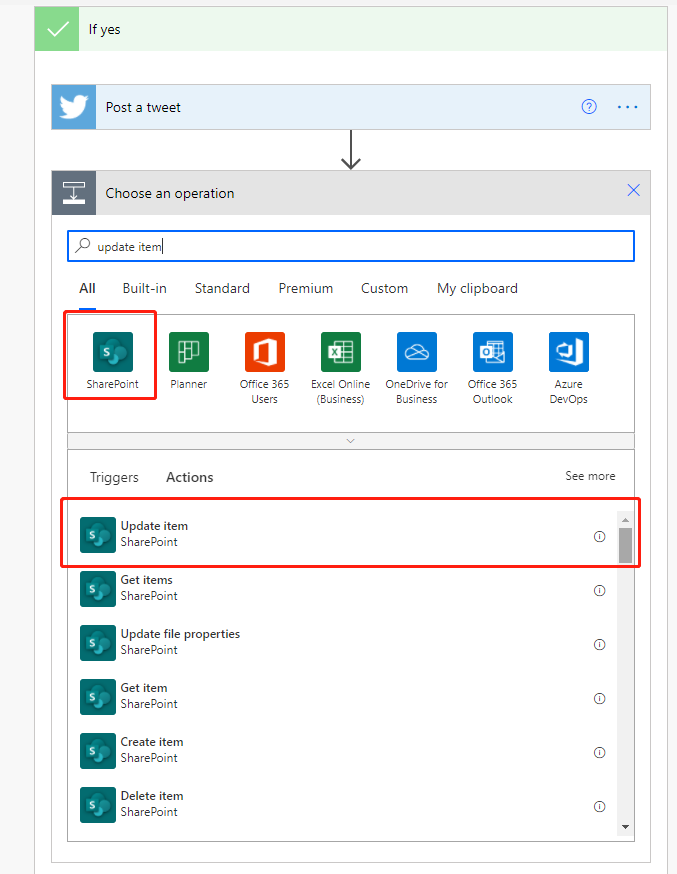
    Adding SharePoint as a connector

  12. In the Site Address, enter the URL of the team's SharePoint site again. In the List Name field, select ContosoTweets again. In the Id field, add ID from the dynamic content list. The Id field is used to match the actual tweet request in the SharePoint list.
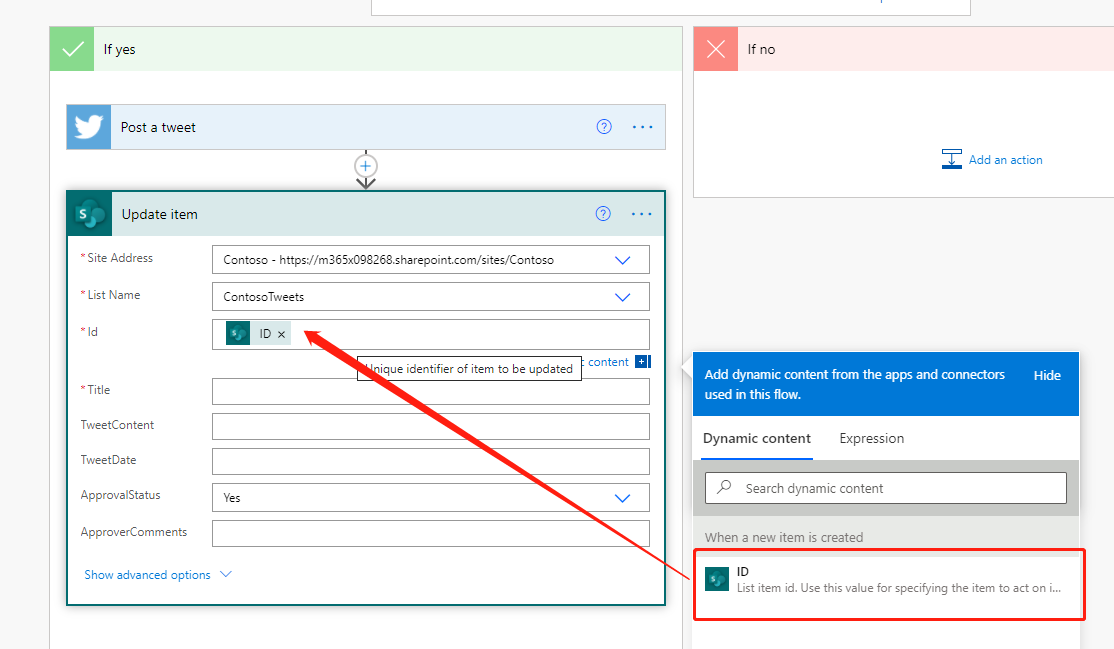
    Pulling in ID Field

  13. Select the Title field, and then, in the dynamic content list, search for title. Add Title from the When a new item is created action.
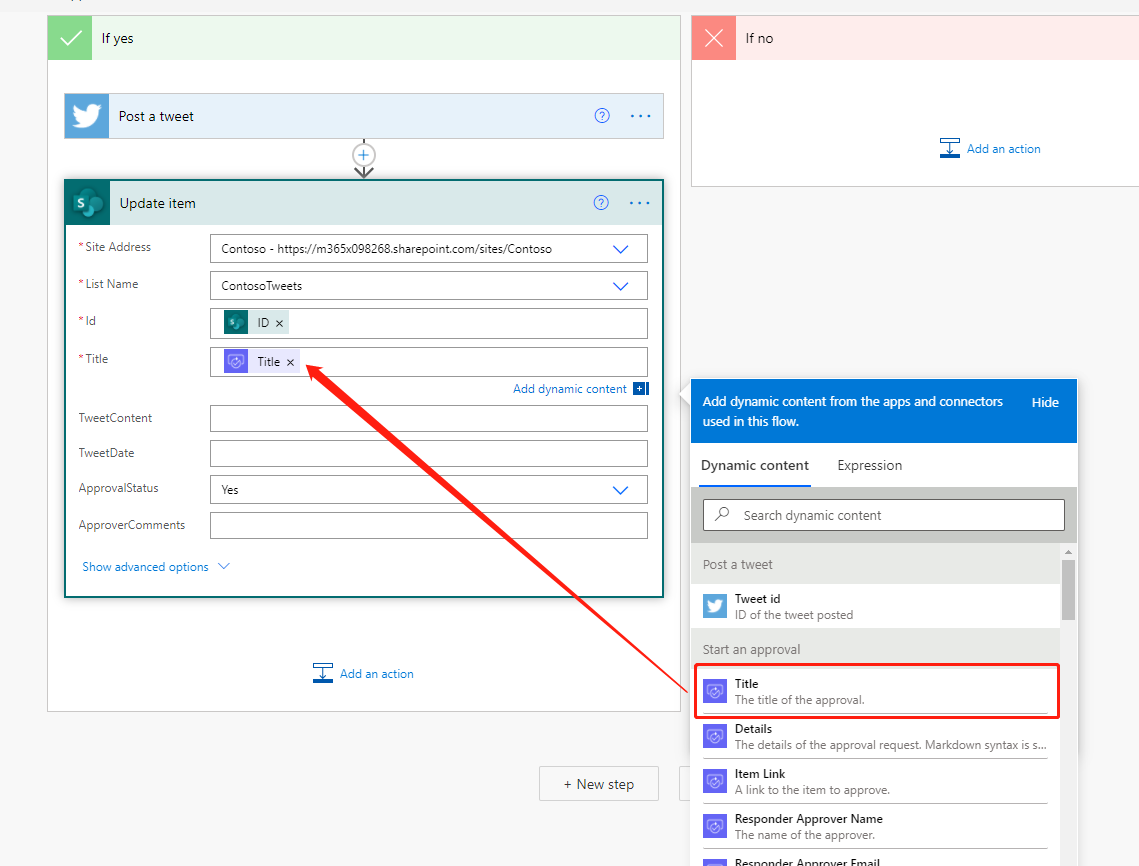
    Pulling in Title field

  14. In the ApprovalStatus field, select Yes. Then select the ApproverComments field, and add Comments from the dynamic content list.
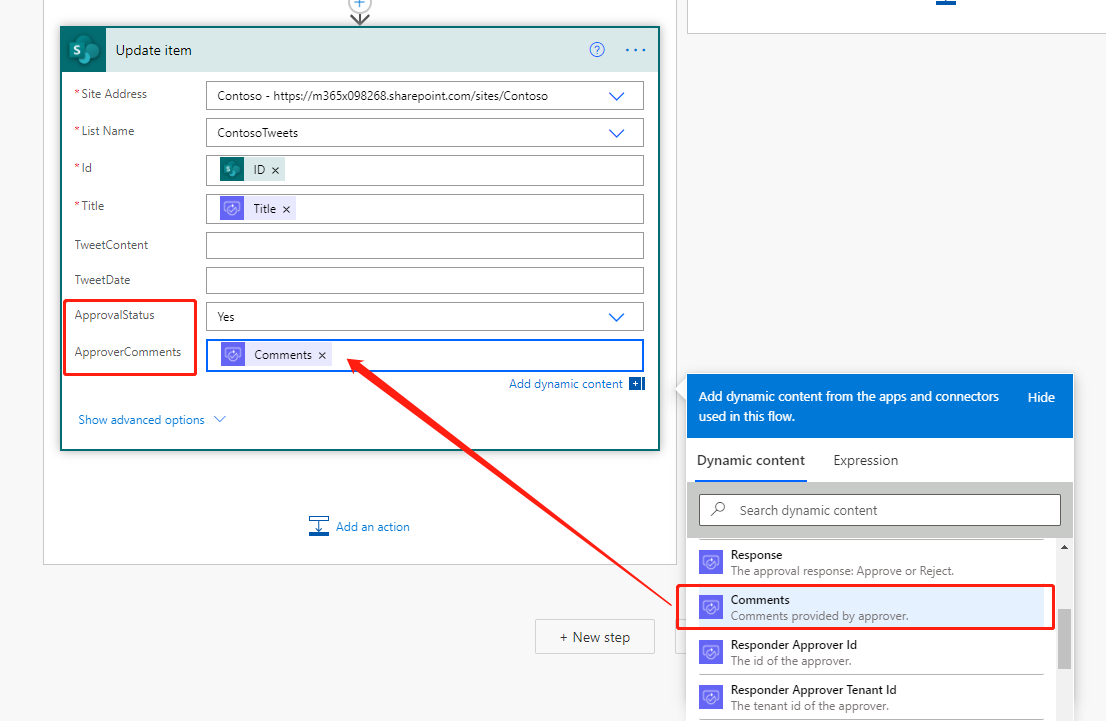
    Pulling in Comments field

  15. Near the bottom of the IF NO, DO NOTHING box, select Add an action.
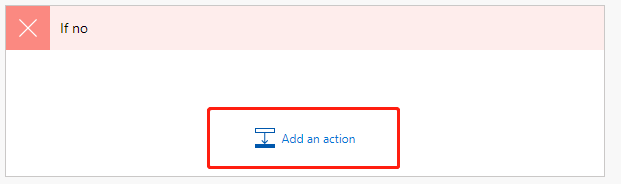
    Confirmation add an action button

  16. Repeat steps 11 through 14 to create a SharePoint – Update item action. Set the same values that you set for the IF YES condition. The only difference is that you set the ApprovalStatus field to No this time.
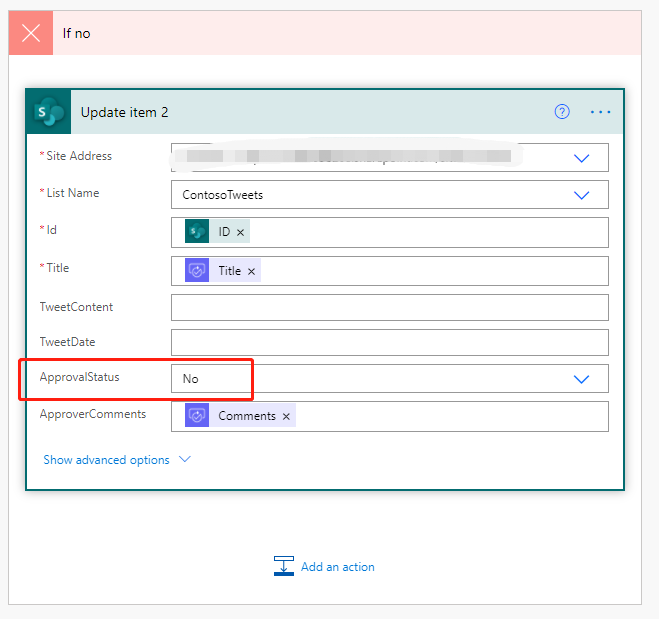
    Update item to not approved status

  17. Select the Post a tweet action, and select Edit. Then select the Tweet text field, and add TweetContent from the dynamic content list. This step will create the actual tweet and then post it to Twitter when it's approved.
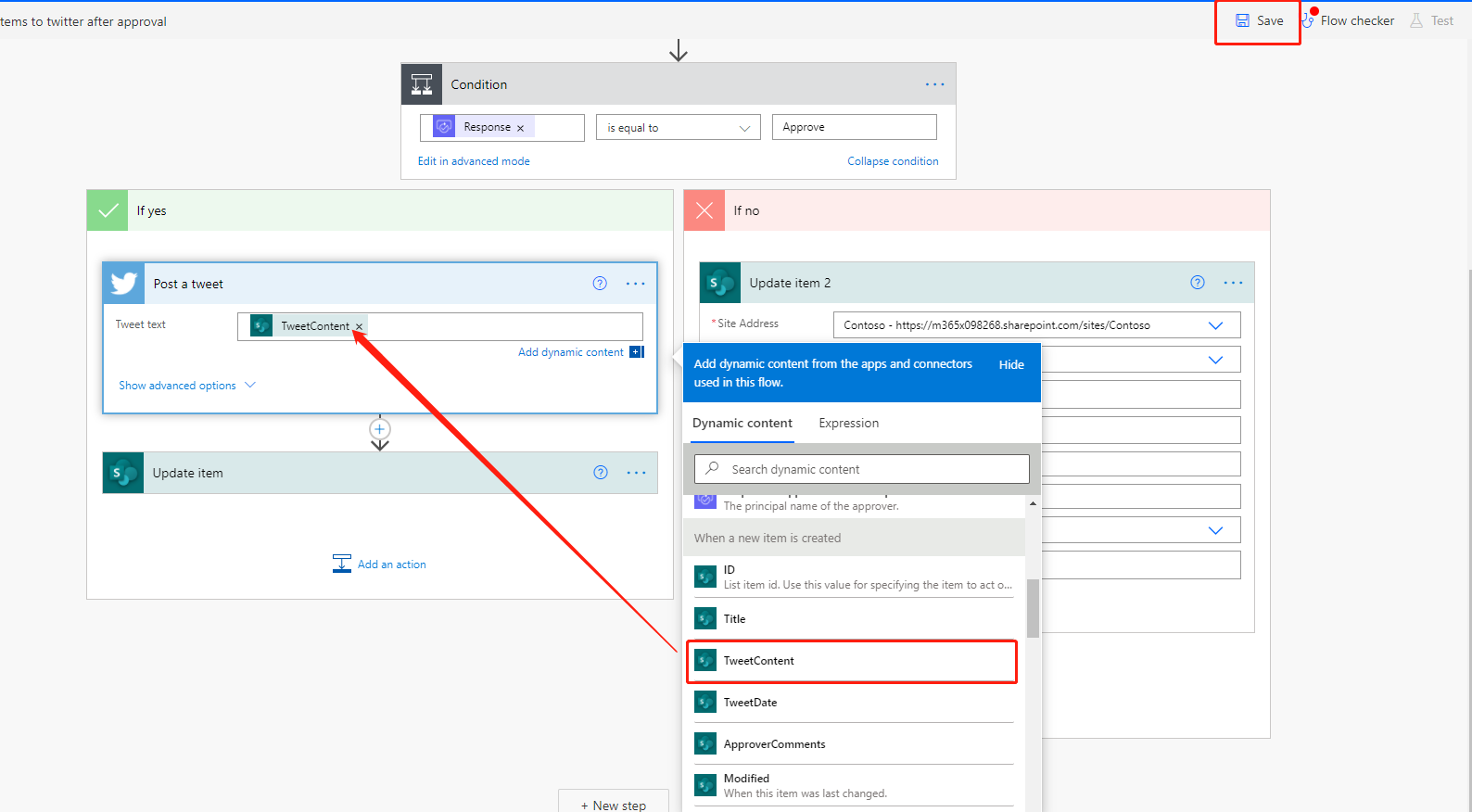
    Tween content field

  18. Select Save.

Congratulations! You just created your first approval flow.

This unit showed another way that Power Automate can empower your team to be more productive. Your team can contribute ideas, relevant news, or product guidance, but you maintain control over what's tweeted out to customers.

Use the approval center

Power Automate helps users to manage their approvals through the approval center. Choose Approvals under Actions on the left-hand menu. Here you will be able to see any approvals you have sent or received and your approval history. Click on the item you just sent to see the details. As you can see, Power Automate displays the details of the request including the requestor, approver, and outcome. You can approve or reject requests directly in your email, or you can come to the approval center and do so directly. Test out the approval center by sending off a few more requests and coming back to explore its functionality.

Export the flow

Now that you have built a flow, you can also export the flow. When exporting a flow, you can either export to a package or a Logic Apps template. Both options are available from the flow details page.

When you export to a package you can then send the resulting zip file to a co-worker in the same tenant to import or to someone in another tenant. The wizard will then walk them through importing the package and connecting it to their specific data sources.

When you export to a Logic Apps template, you can go to Azure Logic Apps and import the template. Logic Apps can then be used to run the logic you created in the flow or can be used to extend the logic using Azure Logic Apps specific functionality. Azure Logic Apps is the engine that Power Automate flows are built upon. You can read more about exporting your flows to Logic Apps here: /azure/logic-apps/export-from-microsoft-flow-logic-app-template

create a button flow in Dynamics 365

Build a button flow

Of course we have an app -- the Power Automate mobile app! From this app, you can access these features:

  • Activity Feed

  • Browsing

  • Buttons

  • Managing Flows

First, you'll need to download and install the Power Automate mobile app from your app store.

After it's installed, start it and sign in.

When you first start the app, you'll see the Activity Feed. The Activity Feed is the place to see what's happening with your flows. It won't be the full experience you'd expect from your PC, but it will show you useful details.

For example, you'll see a flow's last activity. You can see whether the flow succeeded or failed. If it failed, you'll see which step it failed on.

Create a button flow

Buttons are flows that are started through a manual action. For example, you can create a button to send a Working from home today email to your manager. If you live far from your workplace, you can then use this button on days when the traffic is a mess!

  • Select Buttons to use some of these flows.

  • Select Browse to check out templates for more button flows that you can add to your collection.

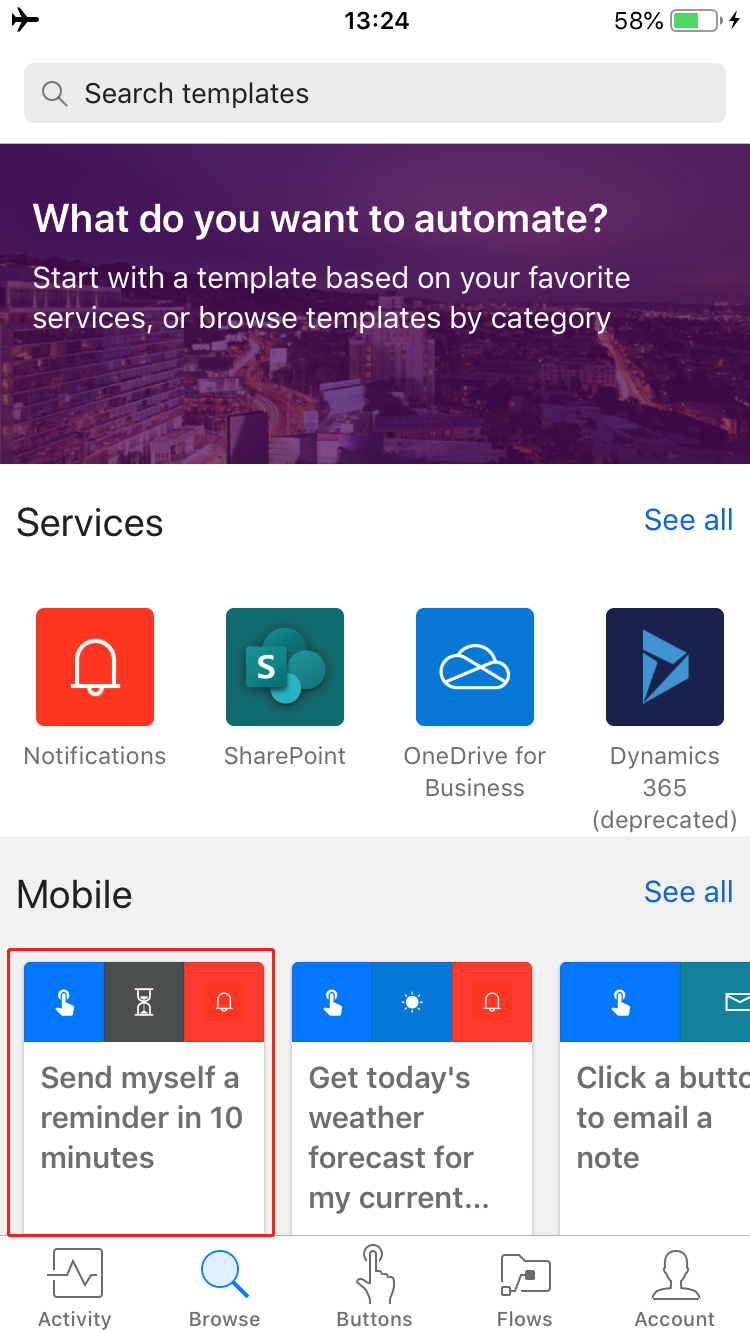
To show you how you can use buttons, we'll use the Send myself a reminder in 10 minutes button template.

  1. Select Browse.

  2. Select the Send myself a reminder in 10 minutes button flow.

    Reminder Button

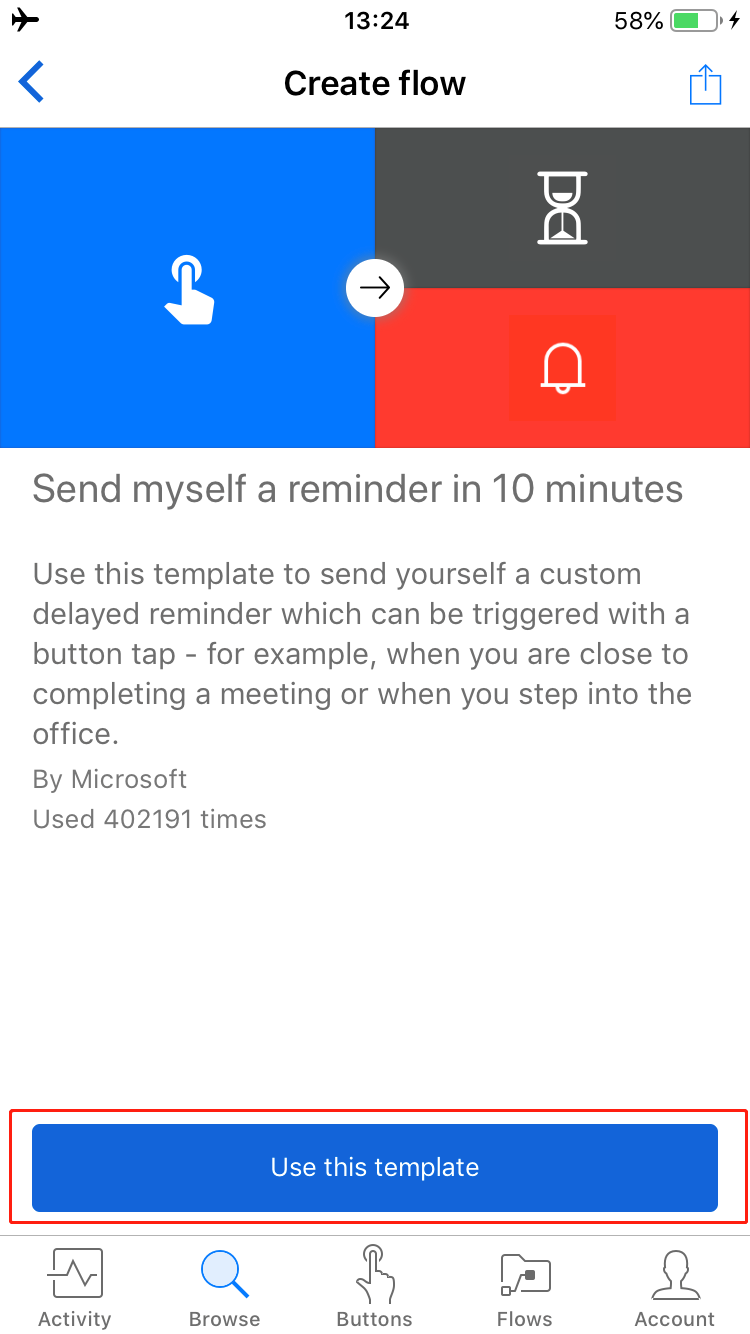
  3. Select Use this template.

    Use this template

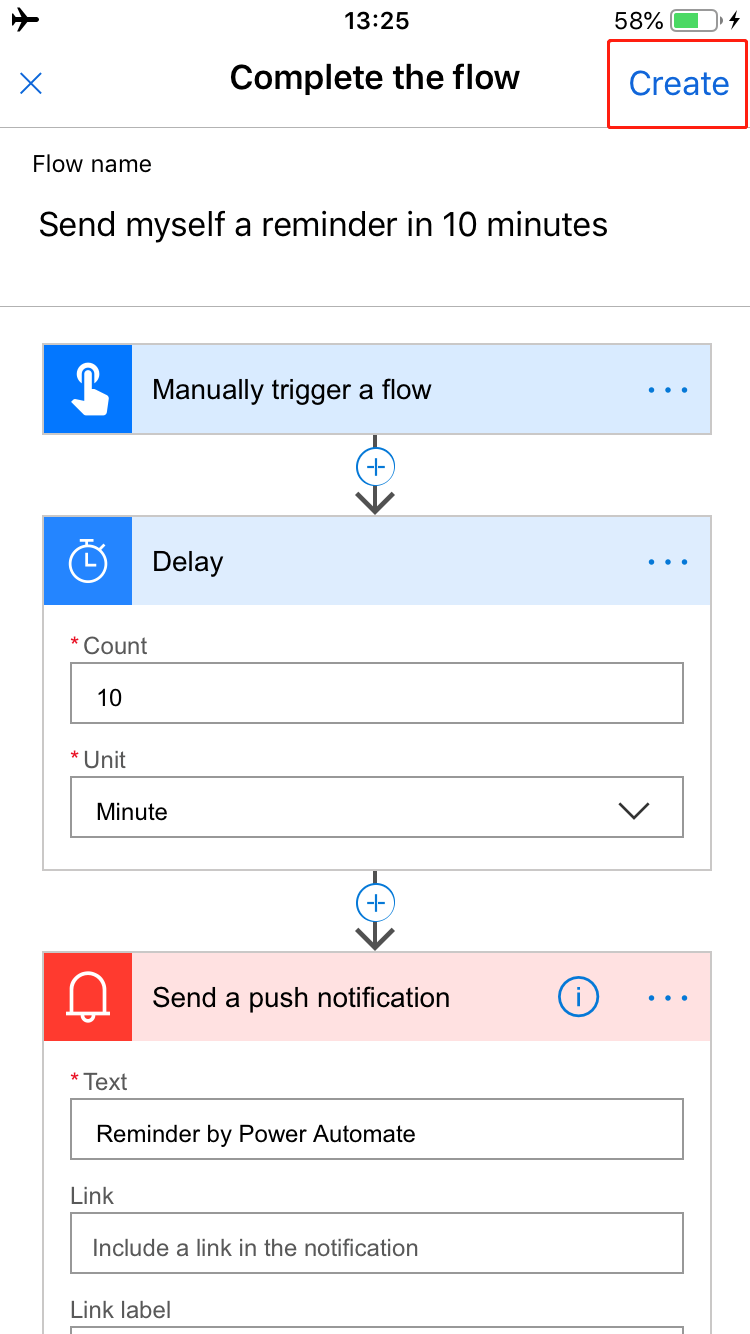
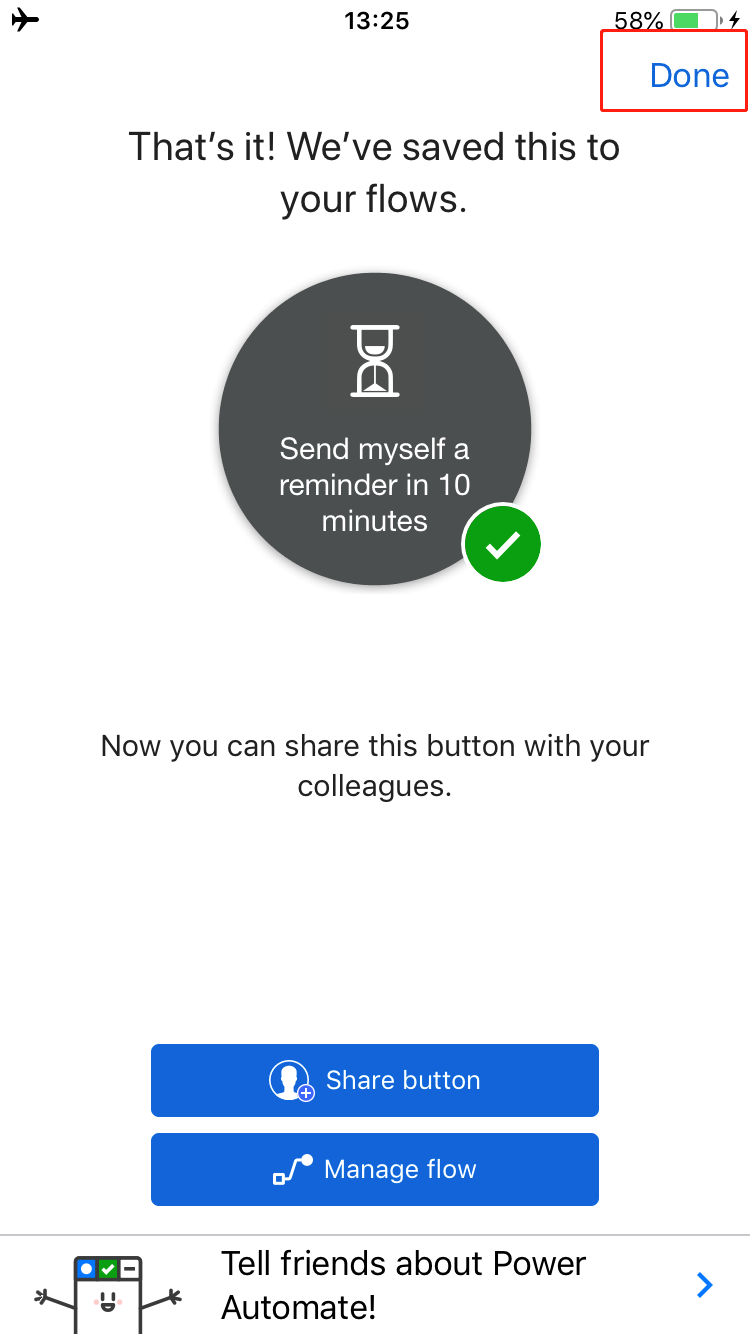
  4. Select Create, and then select Done.

    Creation completed

    Reminder that the flow is saved

    The flow is saved.

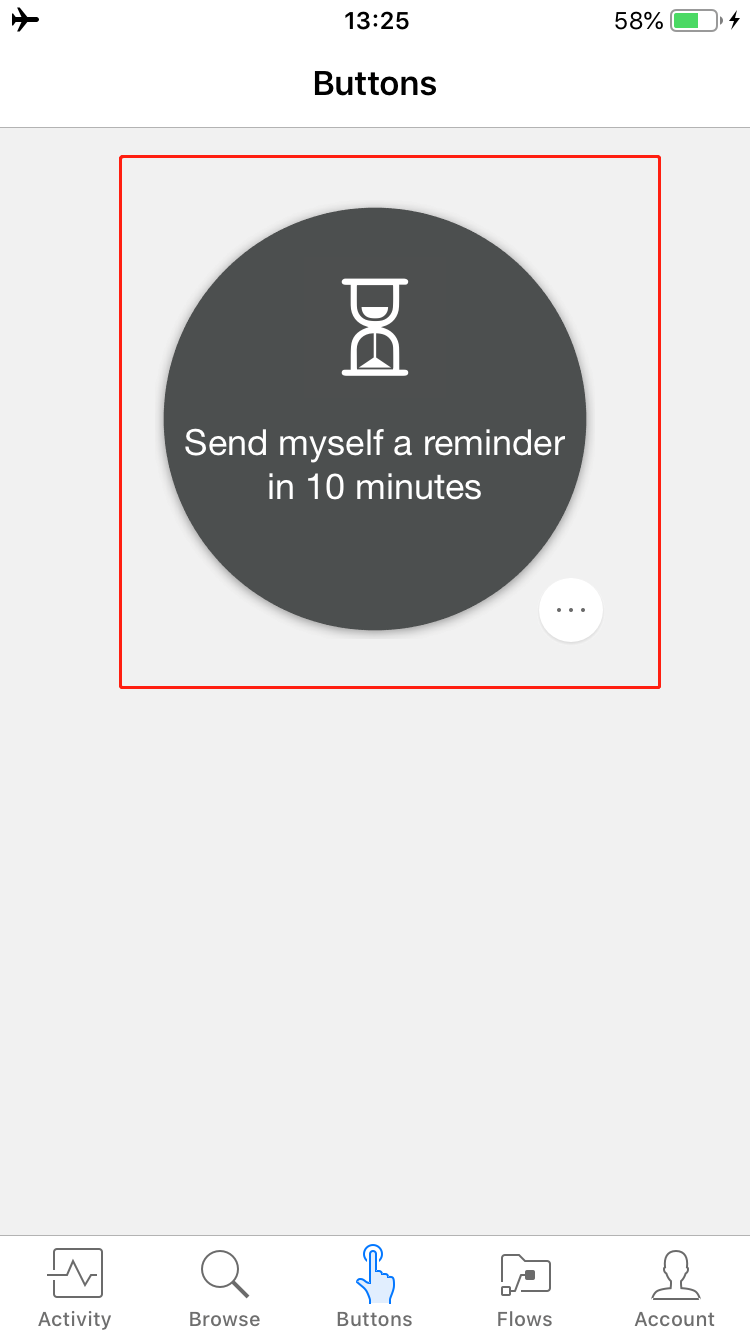
  5. Select Buttons to see the new flow.

    New button flow in your buttons

  6. Select the flow. In 10 minutes, you will get a reminder.


The above content is taken from : https://docs.microsoft.com/

Build recurring flows in D365

Build recurring flows

You can create a flow that performs one or more tasks (for example, sending a report by email) on a specific schedule:

  • Once a day, an hour, or a minute

  • On a date that you specify

  • After a number of days, hours, or minutes that you specify

Create the flow

  1. Launch Power Automate and sign in using your organizational account.

  2. In the left pane, select My flows.

  3. Select New, and then select Scheduled--from blank.

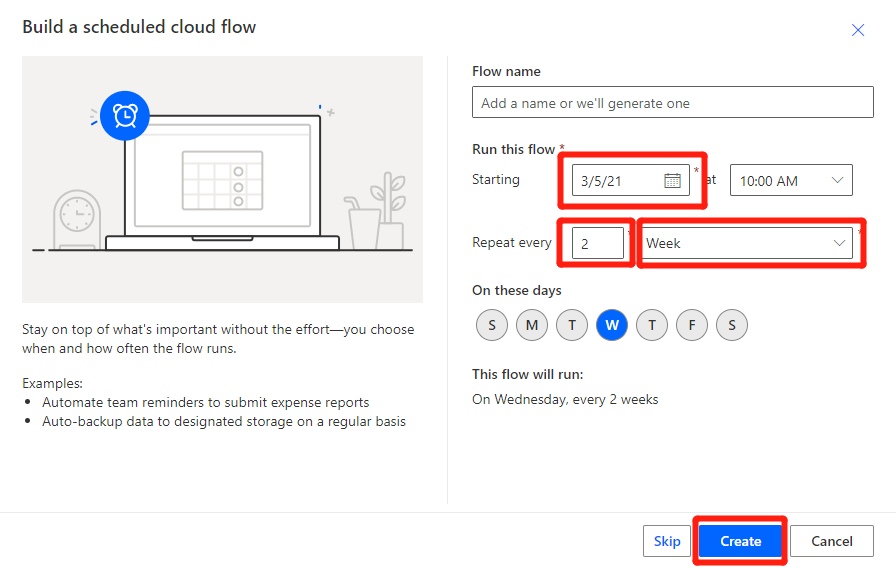
  4. In the dialog box, specify the flow's name and how often the flow should run.

    For example, if you want the flow to run every two weeks, enter 2 in the Interval field, and select Week in the Frequency field. You can also specify the day of the week your flow should run. The text at the bottom of the dialog box explains your inputs in plain language.

    Specify the recurrence

  5. Once you are satisfied with your inputs, select Create.

Specify advanced options

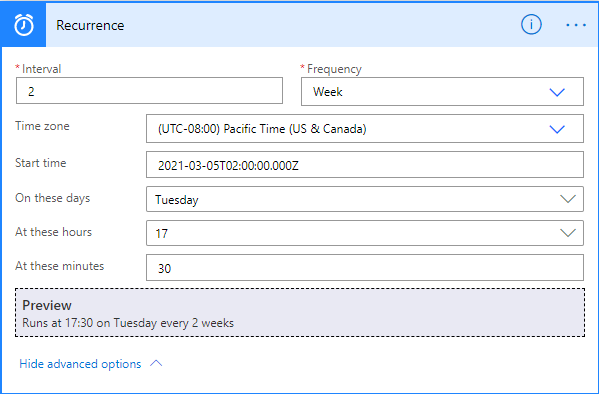
  1. Once your flow is created, select the title of the Recurrence card to expand it. Select Edit and then Show advanced options.

     Note

    The advanced options vary, depending on the value of the Interval and Frequency fields. If the dialog box that you see does not match the graphic that follows, make sure that the Interval and Frequency fields are set to the same values that are shown in the graphic.

  2. Here you can specify a time zone to reflect the local time zone, Universal Coordinated Time (UTC), or another time zone.

  3. Specify the day or days of the week when the flow should run, and the time or times of day when the flow should run.

    For example, set up the flow as shown in the following graphic to start it no earlier than noon (Pacific time) on Monday, January 1, 2018, and to run it every two weeks, at 5:30 PM (Pacific time) on Tuesday.

    create a flow in D365,power automate,email business flow,trigger,compose action,dynamics 365 flow,

Use the compose action

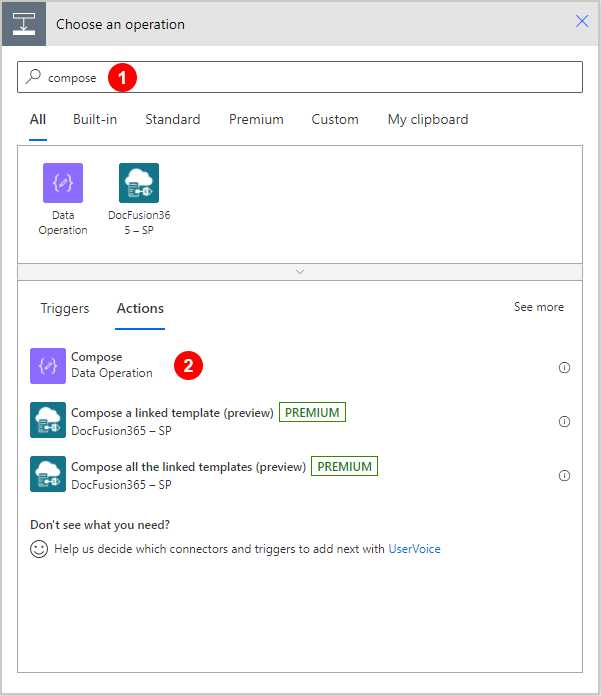
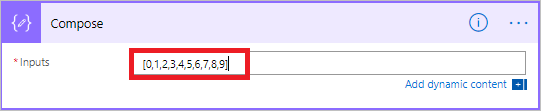
Use the Data Operation - Compose (compose) action to save yourself from entering identical data multiple times when you are designing a flow. For example, if you need to enter an array of digits: [0,1,2,3,4,5,6,7,8,9] several times while you design your flow, you could use the compose action to save the array like this:

  1. Search for Compose, and then select the Data Operation - Compose (compose) action.

    create a flow in D365,power automate,email business flow,trigger,compose action,dynamics 365 flow,

  2. Enter the array into the Inputs box you want to reference later:

    Configure the compose action

     Tip

    For easier reference later, rename the Compose card by clicking on the text "Compose" on the title bar of the Compose card.

    When you need to access the contents of the compose action, do so via the Output token on the Add dynamic content from the apps and connectors used in this flow list by following these steps:

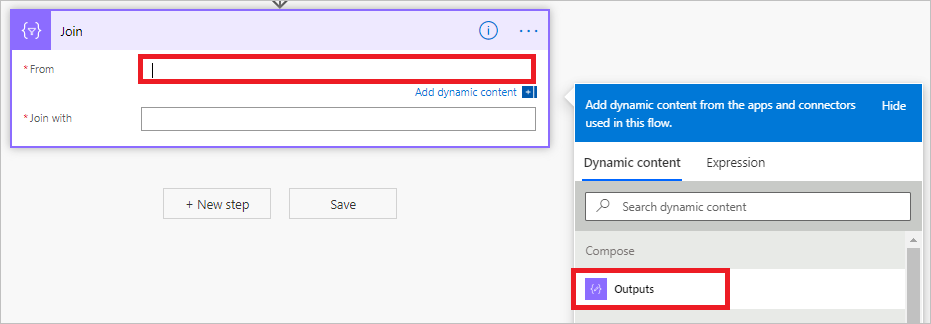
  3. Add an action such as Data Operation – Join.

  4. Select the control to which you would like to add the contents you saved in the compose action.

    The Add dynamic content from the apps and connectors used in this flow opens.

  5. On the Add dynamic content from the apps and connectors used in this flow, select the Outputs token that’s under the Compose category of the Dynamic content tab.

    Use output from compose action

  6. Next Save the Flow in the top right corner

    Click Save button

  7. Then select the back arrow in the top left corner next to the name of the Flow

    Click back arrow

  8. Finally, you can Run the Flow from the command bar at the top

    Run the flow

The above content is taken from : https://docs.microsoft.com/

Blog Post 6: Bonus – Building Your First Custom Copilot Plugin in X++

Blog Post 6: Bonus – Building Your First Custom Copilot Plugin in X++  Introduction In our previous posts, we explored what Copilot can do o...