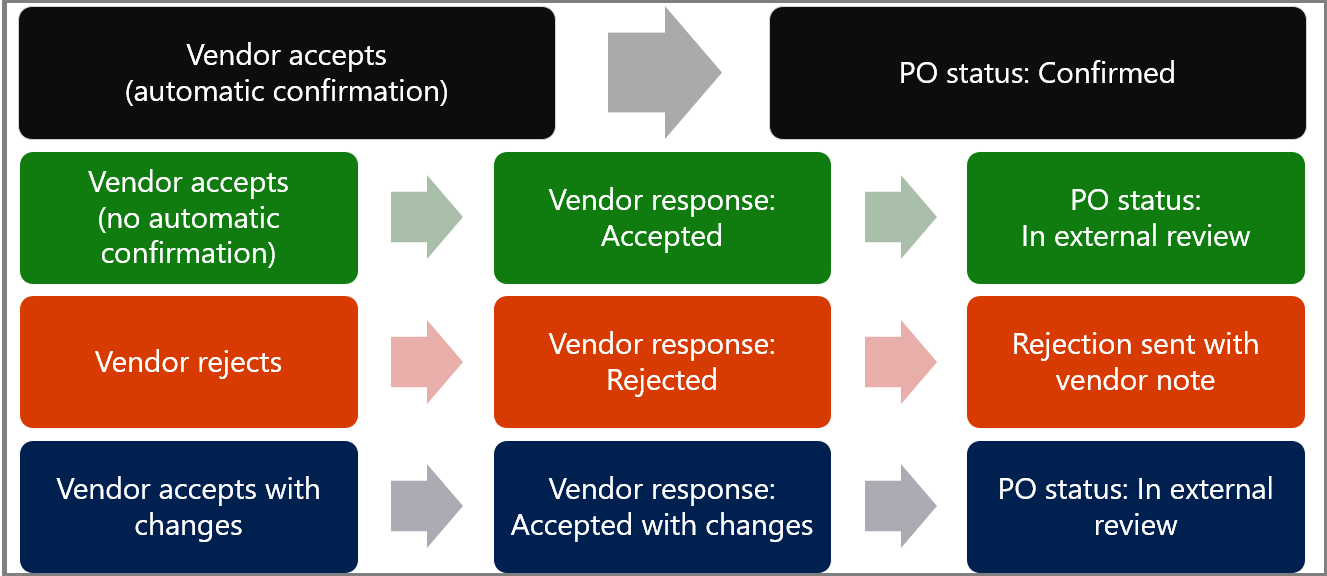
The Vendor collaboration interface in Supply Chain Management exposes a limited set of information about purchase orders, invoices, and consignment stock to external vendor users. From this interface, a vendor can also reply to requests for quotation (RFQs), and view and edit basic company information.
The following image illustrates typical processes between a company and a vendor that would use the Vendor collaboration features in Supply Chain Management.
The above content is taken from : https://docs.microsoft.com/
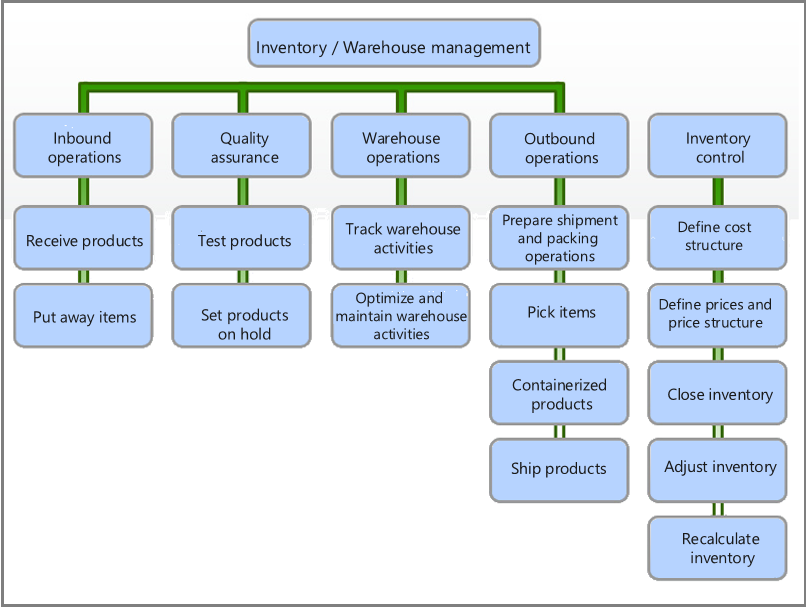
The following image illustrates the typical processes of an organization by using the Inventory management and Warehouse management modules in Supply Chain Management.
You can use the Inventory management and Warehouse management modules to perform the following tasks:
Inbound operations
Quality assurance
Warehouse operations
Outbound operations
Inventory control
The above content is taken from : https://docs.microsoft.com/
public boolean validateField(FieldId _fieldIdToCheck)
{
boolean ret;
ret = super(_fieldIdToCheck);
switch(_fieldIdToCheck)
{
case fieldNum(InventTable, HSNCodeTable_IN) :
if (this.HSNCodeTable_IN)
{
ret = ret && checkFailed("@TaxGST:LabelCheck");
}
break;
}
return ret;
}
Below is an event handler of validate field in D365
/// <summary>
///
/// </summary>
/// <param name="sender"></param>
/// <param name="e"></param>
[DataEventHandler(tableStr(InventTable), DataEventType::ValidatedField)]
public static void InventTable_onValidatedField(Common sender, DataEventArgs e)
{ ValidateFieldEventArgs event = e as ValidateEventArgs; InventTable InventTable= sender as InventTable;
//do anything
}
Similarly we can have Posthandler for salesline or inventtable as an example.
how to get original record of a table in Dynamics D365 ,ax 2012
Hi all,
So in order to get the original record while updating any record in a table you will need the original/previously unchanged record to compare in some scenarios.
how to get all datasource in form event handlers in dynamics d365
[FormEventHandler(formStr(HcmWorkerPositions), FormEventType::Closing)]
public static void HcmWorkerPositions_OnClosing(xFormRun sender, FormEventArgs e)
{
FormRun element = sender;
FormRun formrun;
FormDataSource formDatasource;
int idx;
str name;
formrun = element.args().caller();
name = element.args().callerName();
//sender.dataSource(formDataSourceStr(HcmWorkerPositions, hcmWorker)); you can also try this.
if(formrun && name == 'hcmWorker')//hcmworker is second datasource.
{
for(idx=1;formrun.dataSourceCount();idx++)
{
if(formrun.dataSource(idx).cursor() is HcmEmploymentDetail)
{
formDatasource = formrun.dataSource(idx);
formDatasource.research(true);
break;
}
}
}
}
Many times you come across the error after compiling.
The best solution is to remove the parameter in case it is not required because if it is not used then why declare it.
However in many cases while extension you need the paramtere and hence if you want to supress this error then you can use the following code ..place it above the method within the attiributes and you wont get the error.
To maintain data integrity we will use delete actions Delete actions will come in to picture when user is trying to delete a record [Alt + f9]
Cascade: Setting the DeleteAction property to Cascade extends the functionality of the table's delete method. As a result, super(), in delete, initiates a cascaded deletion, propagating the delete from table to table. A cascaded delete is implicitly protected by tts. Database changes aren't committed until the entire transaction is complete. This cascading will take place whether the deletion is performed in code or directly by a user through the user interface. Ex: On the CustTable table, a cascading delete action has been defined for the CustBankAccount table. When a customer is deleted from the CustTable table, the delete method also ensures that the corresponding bank account information is automatically deleted. Restricted: While deleting a record, If the record having any transcations then a warning message will appear. If the record is not having any transactions in another table then only deleted. Restricted Setting the DeleteAction property to Restricted extends the functionality of the table's validateDelete method. As a result, super(), in validateDelete, checks whether records exist on related tables. If records do exist, validateDelete returns false. The forms system ensures that the deletion is not performed. In your own X++ code, check the return value of validateDelete. Don't delete the primary or related records if the method returns false. Ex:On the CustTable table, a restricted delete action has been defined for the CustTrans table. When a customer is deleted in the CustTable table, the validateDelete method ascertains whether transactions exist for the customer in the CustTrans table. If so, validateDelete returns false. Cascade + Restricted: Setting the DeleteAction property to Cascade+Restricted extends the functionality of the table's validateDelete and delete methods. As a result, super(), in validateDelete, ascertains whether records exist on related tables. Whether deleting records from forms or X++, if validateDelete returns false, the primary record isn't deleted and the cascading delete isn't performed. You should first delete the records in the related table before deleting the primary record. If the primary record is being deleted as part of a cascading delete, the primary record and the records in the related table will be deleted. Reference
Ex.The Cascade+Restricted delete action is used in the standard application for LedgerJournalTrans on LedgerJournalTable. This type of delete action is useful when you prefer a total clean-up—when you delete a customer, you also delete all the transactions associated with that customer. e.g.: tableA (Customer) (a cascade deleteaction to tableB) tableB (SalesOrder) (a cascade+restricted deleteaction to tableC) tableC (SalesLine) When a record of tableB will be deleted, the restricted part of the deleteaction will be performed. The record of tableB can only be deleted, if no record in tableC exist for the record in tableB. (The SalesOrder can only be deleted, if no SalesLine exist for the SalesOrder).
A record in tableA will be deleted, so the cascade deleteaction to tableB will be performed. In this case, the cascade part of the deleteaction to tableC will be performed. (When a Customer will be deleted, the SalesOrders and SalesLines will also be deleted) None - nothing Cascade - both tables are deleted via code and front end. Restricted - via form -> error , if you try to delete via code only second table will get deleted.In case you use validatedelete() then you will get errror. C+R : in both cases both deleted. No error is raised (diff)
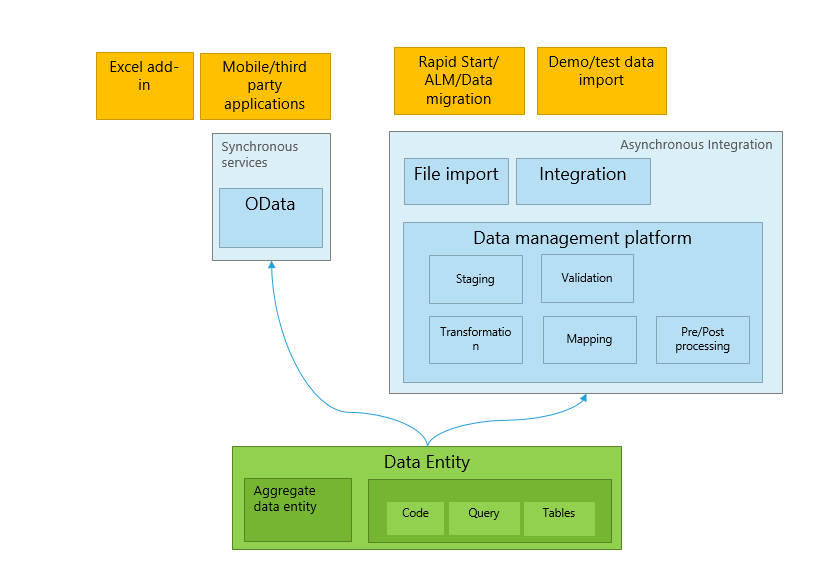
What are entities in d365 how to you create entity in d365
Below is a simple example
The entities are used to model and manage business data in Dynamics 365 for Customer Engagement apps. For example, entities such as account, campaign, and incident (case) can be used to track and support sales, marketing, and service activities. An entity has a set of attributes and each attribute represents a data item of a particular type. For example, the account entity has Name, Address, and OwnerId attributes. Conceptually, an entity is like a database table, and the entity attributes correspond to the table columns. Creating an entity record (or, simply a record) in Dynamics 365 for Customer Engagement apps is like adding a row in a database table. The entities are divided into three categories: system, business, and custom. As a developer working with business data, you will use business and custom entities. System entities are used by Dynamics 365 for Customer Engagement apps to handle all internal processes, such as workflows and asynchronous jobs. You cannot delete or customize system entities
FMLabCustomer entity
Create a data entity for FMLabCustomer in the Fleet Management model. This entity will be used to manage master data through import/export and integration services. The primary data source is FMCustomer, and the secondary data source is FMAddressTable.
Data entity
FMLabCustomerEntity
Data entity fields
Name
Mapping
CellPhone
FMCustomer.CellPhone
DriverLicense
FMCustomer.DriverLicense
Email
FMCustomer.Email
FirstName
FMCustomer.FirstName
LastName
FMCustomer.LastName
CustomerGroup
FMCustomer.CustGroup
AddressLine1
FMAddressTable.AddressLine1
AddressLine2
FMAddressTable.AddressLine2
City
FMAddressTable.City
State
FMAddressTable.State
ZipCode
FMAddressTable.ZipCode
Country
FMAddressTable.Country
Corresponding staging table
Staging tables are used in import/export scenarios to provide intermediary storage during file parsing and transformation. These tables are also used in connector integration scenarios. In many cases, staging table are mapped 1:1 to an entity. The staging table that corresponds to the FMLabCustomerEntity entity is named FMLabCustomerStaging.
Create a new project
In Visual Studio click File > New > Project, and then select Finance and Operations Project.
Right-click the project, click Properties, and verify that the project is in the Fleet Management model. If it isn't, set the Model property to Fleet Management.
Add a new data entity to your project
Create a new entity that is named FMLabCustomerEntity. Right-click you project, and then click Add > New item. The Add New Item dialog box opens.
Select Data Entity, and then set the Name property to FMLabCustomerEntity.
Click Add.
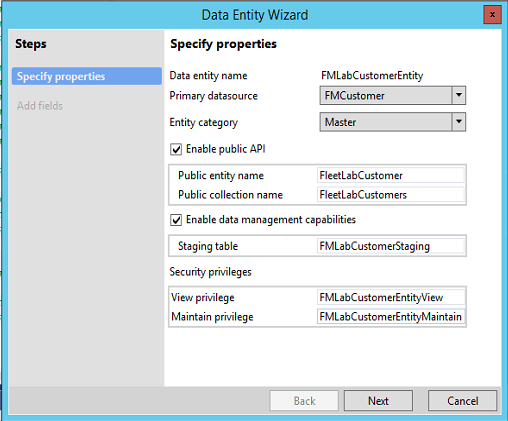
In the Data entity wizard, specify the properties for the data entity that you're creating. Use the values that are shown in the following screen shot.
Note
The name of an entity must not have '_' or any numeric digits (0…9). Using these characters may result in mapping errors later.
Click Next. For more information about the function of each property, see "Categories of entities" and "Building an entity" in Data entities.
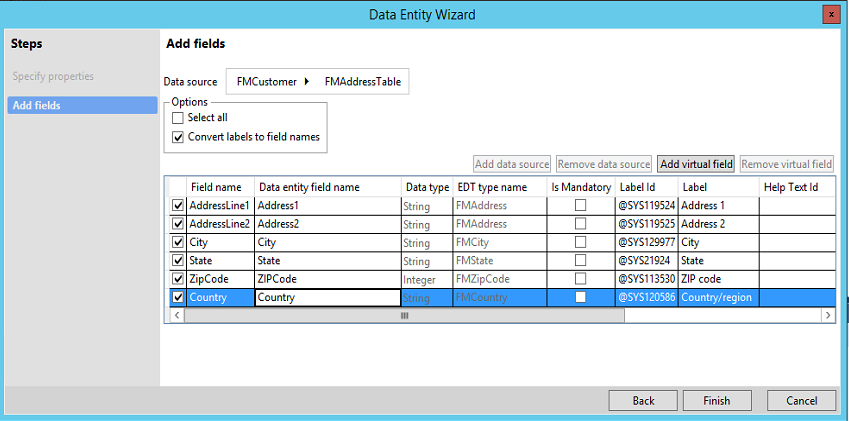
Add fields to the new entity from your data source, as shown in the following screen shot. You can add fields from the primary data source, FMCustomer. For this entity, clear the check box for the Image and LicenseImage container types to simplify testing.
Rename the data entity fields to reflect public data contract standards, or click Convert labels to field names to generate names from the existing labels.
On the line for the DriverLicense field, select the Is mandatory check box. This field will be used as the natural key for the entity.
In the Data source field, select PrimaryAddress. Notice that the PrimaryAddress data source is automatically added because of automatic expansion or the surrogate foreign key replacement of AddressID.
Select the fields from the PrimaryAddress data source that you want to be part of your entity. Additionally, rename the following fields to reflect proper public data contract naming:
PrimaryAddress _AddressLine1 > AddressLine1
PrimaryAddress _AddressLine2 > AddressLine2
PrimaryAddress _City > City
PrimaryAddress _State > State
PrimaryAddress _ZipCode > ZipCode
PrimaryAddress _Country > Country
Click Finish. A data entity item and staging table are added to the project.
Build your project
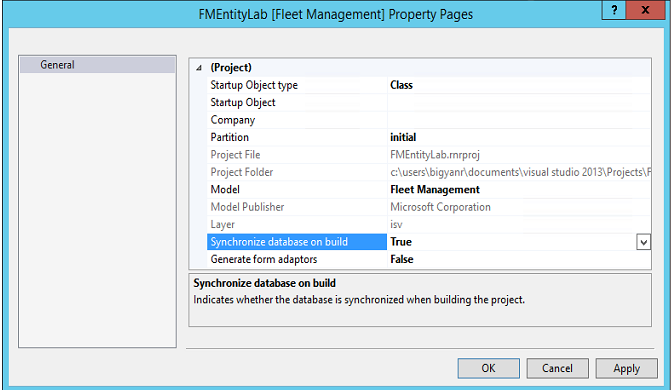
In Solution Explorer, right-click your project, and then click Properties.
Change the value of the Synchronize database on build property to True, and then click OK. This property must be set only one time per project.
Note
Entities are created as views in Microsoft SQL Server, and staging tables are also added. Therefore, you must sync a database when you build entities.
On the Visual Studio toolbar, click Build > Build Solution to build the project.
Verify that the build doesn't contain any errors. At this point in the tutorial, warnings are allowed.
Visually validate and customize an entity
In Solution Explorer, right-click the FMLabCustomerEntity node, and then click Open. The designer for the entity opens in the middle pane.
Validate the properties of the FMLabCustomerEntity entity. Select the entity in Solution Explorer, and compare the Properties pane values to the following screen shot.
Set the Label property to Fleet Lab Customers.
In the left pane, click Data Sources > FMCustomer > Data Sources > FMAddressTable.
Change the Is Read Only property to No. This is a known issue. Eventually, the value will be set to Yes or No automatically, based on the type of join. The value should be Yes for composition scenarios, and No for associations (surrogate foreign key expansions). This property enables the data source to be read/write.
In the FMLabCustomerEntity designer, click Keys > EntityKey, and then expand the Fields node. Verify that the list of fields matches the following screen shot.
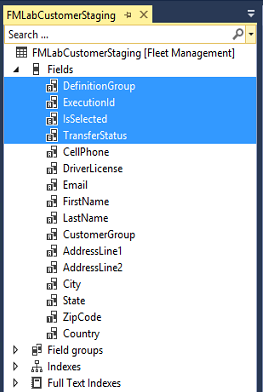
To visually validate the staging table that will be used for import/export, open the FMLabCustomerStaging table in the designer, and then select the FMLabCustomerStaging node.
Click FMLabCustomerStaging > Fields. In the following screen shot, the standard fields of the staging tables are selected. All entity staging tables have these standard fields. The screen shot also shows the data fields that belong on this data entity.
In Solution Explorer, right-click your project, and then select Rebuild to rebuild and synchronize the project.
Testing data entities
Entities can be tested by using various methods in X++, through data import/export, or through integrations. In this section, we'll explore scenarios for validating entities.
Test the entity by using X++ code
One of the most common ways of interacting with data entities is through X++, by using a unit test or a runnable job to validate that the entities have been built. In this example, we will use a runnable job.
In Solution Explorer, click Add > New item > Runnable class to add a runnable class to your project.
Copy and paste the following code into the class to test your data entity.
public static void main(Args _args)
{
    FMLabCustomerEntity customer;
    str license = "License";
    Random r = new Random();
    int rand = r.nextInt();
    license = license + int2str(rand);

    //Create a new record in FM lab customer entity
    customer.clear();
    customer.FirstName = "Bob";
    customer.LastName = "Smith";
    customer.DriverLicense = license;
    customer.insert();

    info(strfmt("Tried to insert customer '%1 %2' with license %3",
        customer.FirstName, customer.LastName, customer.DriverLicense));

    //Display newly created record
    select forupdate customer where customer.DriverLicense==license;
    info(strfmt("Found newly created customer '%1 %2' with license %3",
        customer.FirstName, customer.LastName, customer.DriverLicense));

    //Now delete the record from the entity
    customer.delete();
    select customer where customer.DriverLicense==license ;
    info(strfmt("Deleted customer does not exist: license- %1", customer.DriverLicense));
}
Run the code in debugger to set it as a startup object.
To validate the entity, view the Infolog in the debugger window or in notifications on the website. You will see that three successful messages are logged. You will also see the actions that were taken.
Importing data by using entities
Data entities that have the Data Management Enabled property can be used to import and export data in various file formats. In this section, you will import data in a CSV file format for the FMLabCustomer entity.
File import
After you create your data entity, you can validate import/export.
Create a sample CSV file that you can import. Copy the following text, and save it as FM Lab Customer Import.csv.
CELLPHONE,DRIVERSLICENSE,EMAIL,FIRSTNAME,LASTNAME,CUSTOMERGROUP,ADDRESSLINE1,ADDRESSLINE2,CITY,STATE,ZIPCODE,COUNTRY(999) 555-0100,S615-3939-2349,chris.spencer@adatum.com,Chris,Spencer,adv\_mem\_1,444 Main Street,,Orlando,FL,77899,US(188) 555-0101,S615-3939-2350,Ichiro.lannin@blueyonderairlines.com,Ichiro,Lannin,non\_mem\_1,12 Long Street,,New York City,NY,99087,US(777) 555-0102,S615-3939-2351,josh.smith@fourthcoffee.com,Josh,Smith,adv\_mem\_1,9606 122th Avenue,,Sydney,TX,99874,US(456) 555-0103,S615-3939-2352,Vince@fabrikam.us,Vince,Ahmed,non\_mem\_1,123 Microsoft Way,Unit 87,Seattle,WA,90001,US(345) 555-0104,S615-3939-2353,tony.parker@lucernepublishing.com,Tony,Parker,non\_mem\_1,12012 11th PLNE,Apt 160,San Francisco,CA,75645,US(312) 555-0105,S615-3939-2354,Julia@fineartschool.net,Julia,Natarajan,exec\_mem\_1,449 Long Street,Apt 160,Bruxelles,ID,34213,US
Click User Dashboard > Data management.
In the Data Management workspace, click the Import tile.
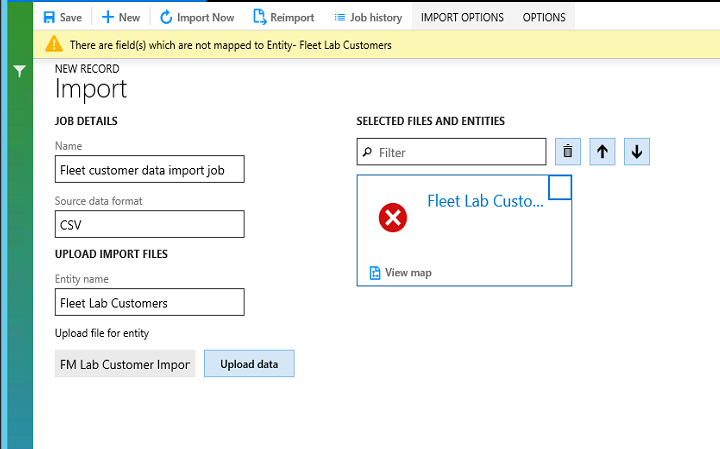
On the Import page, enter the import details, as shown in the following screen shot.
Click the Upload data button next to the Upload file for entity field, and select the CSV file that you created.
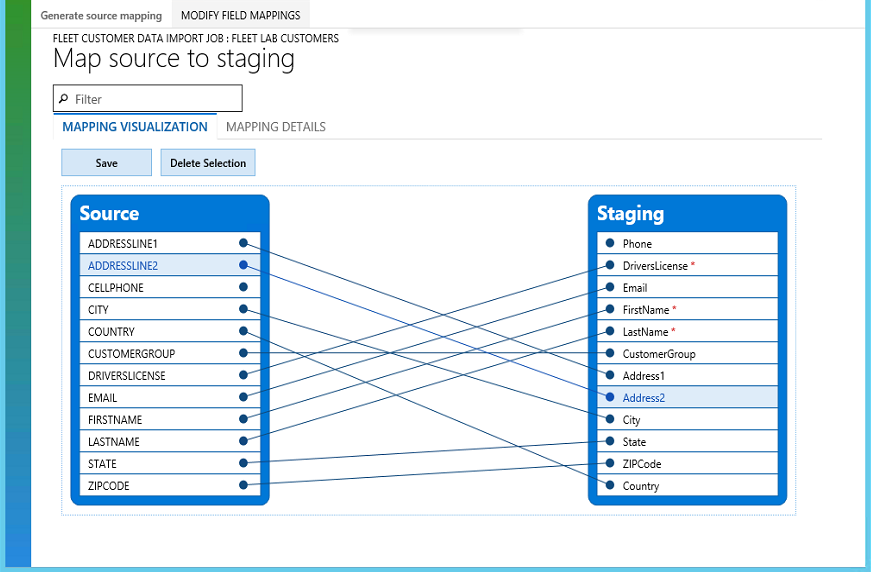
After the file is uploaded, you will notice that the entity is added to the middle section. You will also receive an error that states that the mapping isn't valid. A few fields aren't mapped correctly between the source file and the target entity.
In the entities list, click View map.
AddressLine1 and AddressLine2 are two fields in the source that aren't mapped to target fields. In the visual mapper, or details view, map these fields as follows, and then click Save:
AddressLine1 – Address1
AddressLine2 – Address2
Click the Back button in your browser to go back to the Import job page. The check mark in the entities list indicates that the entity is now ready for import.
Click Import Now. After the import is completed, the job status page opens.
Consuming entities by using OData
In this section, you will learn how to expose and consume an entity for OData. Before you begin, verify that the Fleet demo data is loaded from the client: [baseURL]/?f=FMSetup
Review the FleetRental entity and add a navigation property for OData
You will review the existing FleetRental entity and then create a relationship from one data entity to another. This relationship will be used as a navigation property for OData entities.
In Solution Explorer, verify that you're in the FMEntityLab project.
In Application Explorer, search for FMRentalEntity, right-click it, and then select Add to Project.
In Application Explorer, search for FMCustomerEntity, right-click it, and then select Add to project.
In Solution Explorer, right-click FMRentalEntity, and then select Open.
In the view designer, select the root node, FMRentalEntity, and review the following properties.
Property
Value
Description
IsPublic
Yes
When this property is set to Yes, the entity is visible by using the OData application programming interface (API).
Public Entity Name
FleetRental
The name that will be used in the OData APIs for EntityType.
Public Collection Name
FleetRentals
The name that will be used for the OData collection entity.
In the view designer, expand the Relations node.
Select Customer Relation, and then click Delete.
Right-click Relations, and then select New > Relation.
Select Relation1, and set the following properties.
Property
Value
Cardinality
ZeroMore
Name
CustomerRelation
Related Data Entity
FMCustomerEntity
Related Data Entity Cardinality
ExactlyOne
Related Data Entity Role
CustomerRole
Relationship Type
Association
Role
Rental
In the view designer, right-click the CustomerRelation node, and then select New > Normal.
Right-click the new node under CustomerRelation, and then select Properties.
Set the following properties.
Property
Value
Field
CustomerDriverLicenseThis is the foreign key field on FMRentalEntity.
Related Field
DriverLicenseThis is the unique key on FMCustomerEntity.
The following screen shot shows the relation in Visual Studio.
On the BUILD menu, click Build Solution to save your changes and build the project. You can view the build progress in the Output window.
To update the OData endpoint with the changes, you must run an iisreset command. Open a Command Prompt window as an administrator, and enter iisreset.
You've now created a navigation property between FMRentalEntity and FMCustomerEntity.
Use standard OData syntax to retrieve data
In this section, you will use some of the standard OData syntax to navigate and query the OData entities that are exposed in the Fleet Management model. First, follow these steps to enable Internet Explorer to view JSON formatted data.
Close all Internet Explorer windows.
Go to C:\FMLab, and select and double-click the json.ie.reg file.
In the Registry Editor dialog box, click Yes.
Click OK.
You can now use Internet Explorer to explore some OData URIs.
Start Internet Explorere, and enter the following URL in the address bar: [baseURL]/data/$metadata You will see all the metadata that is associated with OData entities.
Note
The metadata might take a few minutes to appear the first time that you access it. In the XML, you can see all of the properties and navigation properties associated with the OData entities.
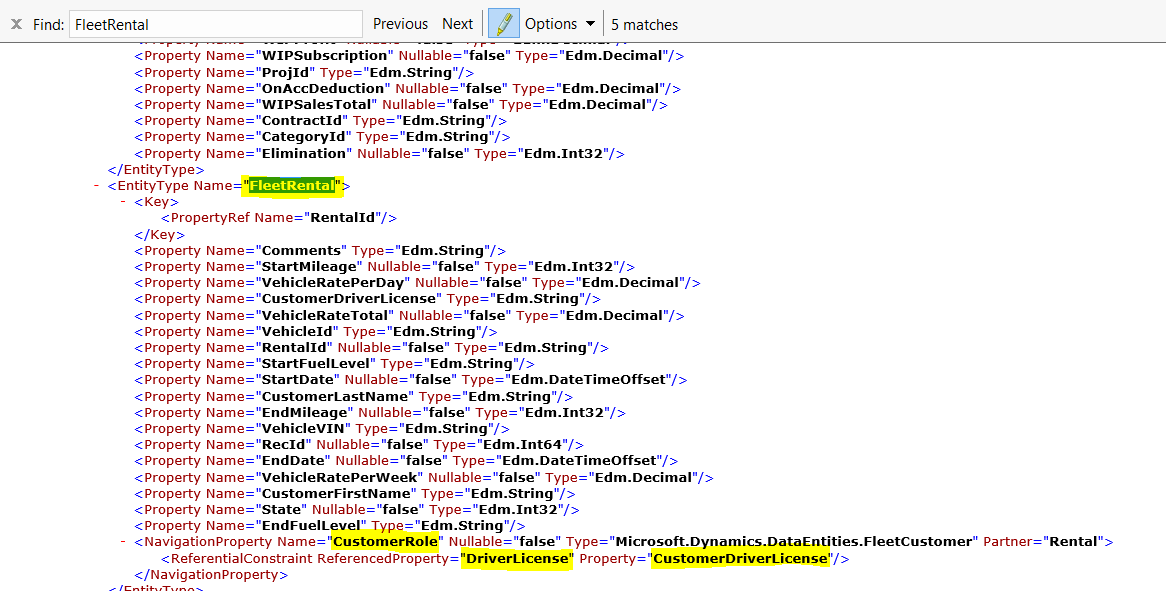
In the browser, find FleetRental. The following screen shot shows the metadata of the FleetRental entity, together with the new relationship, NavigationProperty.
To view all the customers in the Fleet Management application in JSON format, enter the following URL into the address bar of your browser: [baseURL]/data/FleetCustomer
Note
Entity names are case-sensitive.
If you don't want to retrieve all properties for the customers, you can retrieve just selected properties. For example, to retrieve only FirstName and LastName, enter the following URL: [baseURL]/data/FleetCustomers?$filter=FirstName.LastName
You can also apply filters. For example, to filter on all customers where FirstName=Phil, enter the following URL: [baseUrl]/data/FleetCustomers?$filter=FirstName%20eq%20'Phil'
Note
These URLs won't work if you copy and paste them. You must manually enter them in the address bar.
To retrieve all the Rental records, together with all details of the customers, enter the following URL: [baseURL]/data/FleetRentals?$expand=CustomerRole The following example shows a Rental record, together with details of the linked customer, in JSON format.
Actions provide a way to inject behaviors into the data model. In Dynamics 'AX 7,' you add actions by adding a method to the data entity and then decorating the method with specific attributes. In this section, we'll walk through the steps for adding an action.
In Solution Explorer, right-click FMRentalEntity, and then select View code.
Copy the following code lines, and paste them into the Code window.
public class FMRentalEntity extends common
{
    [SysODataActionAttribute("ReturnRental", true)]
    public str ReturnRental()
    {
        //do something
        return "Rental was successfully returned. Thanks for your business";
    }
}
On the BUILD menu, click Rebuild Solution to save your changes and build the project. You can view the build progress in the Output window.
To update the OData endpoint with the changes, you must run an iisreset command. Open a Command Prompt window as an administrator, and enter iisreset.
The action that you just added can be invoked through code, as you will see in the next section.
Consume the OData API from an external console application
In this section, you will use a console application to consume the OData endpoints that are exposed in the Fleet Management application. The console application first creates a new customer and then creates a new reservation for that customer. This tutorial shows how easy it is to use OData together with standard .NET Windows Communication Foundation (WCF) data service libraries to integrate with Dynamics AX.
Start a new instance of Visual Studio.
On the File menu, click Open > Project/Solution.
In the Open Project dialog box, browse to C:\FMLab\Odata4ConsoleApplication, and then select Odata4ConsoleApplication.csproj.
Click Open. The Odata4ConsoleApplication project appears in Solution Explorer.
In Solution Explorer, double-click OdataProxyGenerator.tt.
In the code editor, replace the following string with your organization's URL.
<baseURL> public const string MetadataDocumentUri = "<baseURL>/data/"
Save the OdataProxyGenerator.tt file.
In the Save of Read-only file dialog box, click Overwrite. The proxy class for the OData metadata endpoint is generated. This operation might take a few minutes.
In Solution Explorer, double-click Program.cs.
Replace the value of the dynamicsBaseUri variable with your organization's URL.
Verify that there is a final closing slash (/) in the URL, and then click Save.
In the Save of Read-only file dialog box, click Overwrite.
Press F5 to run the application, and then follow the instructions in the output console window. The application might prompt you for your Dynamics AX credentials. After the application has run, the new customer and the corresponding reservation are created.
Follow these steps to verify that the new reservation appears on the Rental page:
Start Internet Explorer, and enter the following URL in the address bar: [baseURL]/?mi=FMRental The FMRental page shows the list of rentals.
At the bottom of the list, click Next to view the next page. On this page, you can see that the reservation was created for the new customer that you added.
This completes the walkthrough, where you've seen an external client interacting with the Fleet Management model by using OData endpoint.