Showing posts with label customer service in D365. Show all posts

Saturday, 12 December 2020

Dynamics 365 Customer Service Insights

Dynamics 365 Customer Service Insights

Dynamics 365 Customer Service Insights provides actionable insights into critical performance metrics, operational data, and emerging trends about to support issues. These insights help you evaluate and respond to customer issues affecting key performance indicators (KPIs) and customer satisfaction levels.

Dynamics 365 Customer Service Insights analyzes your support cases and groups similar ones together into topics using AI. These groups allow you to focus on the issues that are having the biggest effect on your organization. You can make smarter decisions about what to optimize or automate to ensure delivery of exceptional customer service. Built-in dashboards, interactive charts, and visual filters give you deep views into operation data across multiple channels. By comparing data across topics, you can pinpoint and resolve issues before they affect customers.

The following screenshot shows a Dynamics 365 Customer Service Insights KPI summary.
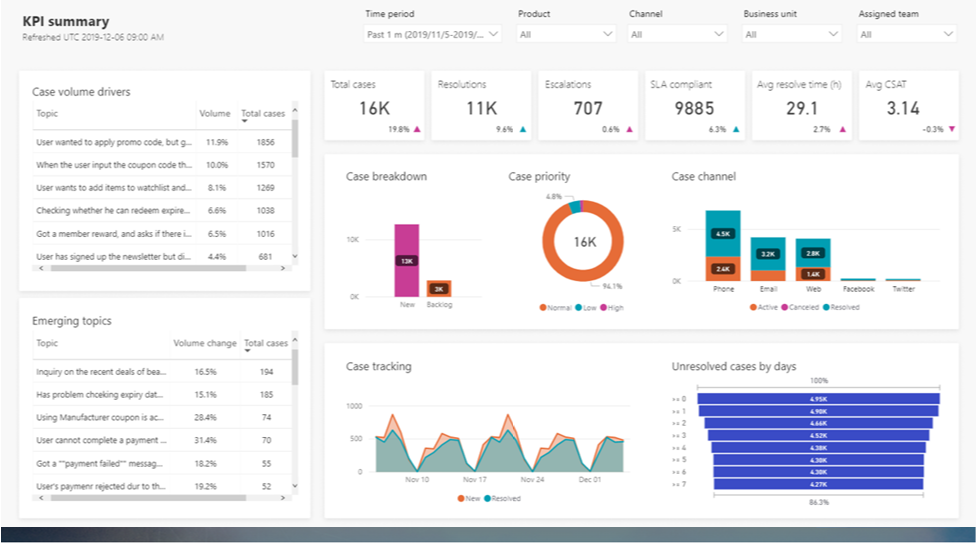
Customer Service Insights KPI summary

By drilling into topics and reviewing the cases included, you can give feedback that influences which cases you include in topics in the future. The AI-driven technology allows you to make informed decisions about how to improve resolution rates, reduce wait times, and lower customer service costs. You can also use case resolution insights, backlog trends, and historical comparisons to evaluate agent performance. You can assess business affect and address inefficiencies in your system.

You can add common support issues found in Dynamics 365 Customer Service Insights in power virtual agents. It helps you build smarter bots quickly. With power virtual agents, you can create intelligent bots using a guided, no-code graphical interface without the need for data scientists or developers

You can use Dynamics 365 Customer Service Insights to gain a deeper understanding of your data to discover and adapt to current and emerging trends. You can act on these insights by using tools like power virtual agents to create automated bots. The bots interact with customers based on the topics found in Dynamics 365 Customer Service Insights.

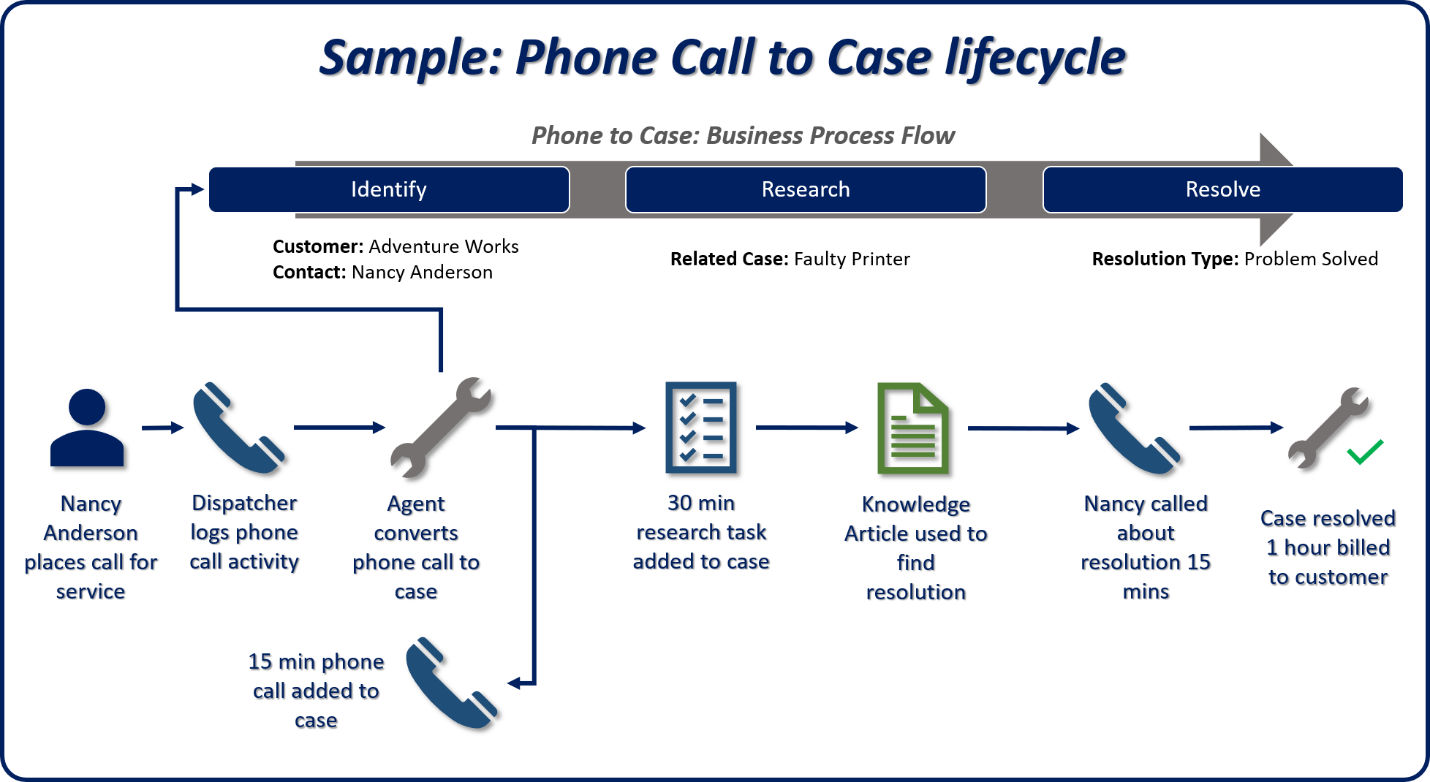
Case lifecycle management in D365 Customer Service

Case lifecycle management

Dynamics 365 Customer Service not only makes it easier for you to work on and manage caseloads, it also has the same user experience whatever device you're using. It puts powerful case management capabilities at your fingertips.

One key element that makes it easy for you to find and manage cases is in the interactive dashboards. The dashboards include visual filters that you use to pare down the data displayed with multiple interactive charts. You drill down using the charts to find the most appropriate cases to work on. The interactive dashboards include:

  • Tier 1 dashboard: The Tier 1 dashboard has multiple streams of data from multiple entity types. It makes it easy for you to work with cases and related items such as activities or email.
  • Tier 2 dashboard: The Tier 2 dashboard has a single stream of data based on active cases. It includes multiple tiles and interactive charts for working with case data.
  • Entity-specific dashboards: The entity-specific dashboards are specific to an entity that includes multiple streams of data related to that specified entity.

Case lifecycle management has multiple features on the case form to help you manage and resolve case records including:

  • Case general information: Case general information shows key information about the case such as the case description, contact, product, and entitlement.
  • Service-level agreement (SLA): The SLA shows a countdown timer for the applicable SLA indicators such as first response and resolve by timeframes. These visual cues help you ensure that you're meeting the SLAs for your customers.
  • Timeline: The timeline shows all interactions (activities, notes, and posts) related to the case. You can:
    • Review relevant communication from earlier interactions in an aggregated view.
    • Manage or close open activities from within the timeline.
    • Record time spent on case-related activities to decide how much time to bill the customer.
  • Related: This feature allows you to search the knowledge base within the case record. The system uses data from the case record to populate the search criteria.
    • Once you find a knowledge article, you can email to the customer directly from the case and attach it to the case record. This information can help you in the future with similar cases.
  • Business process flows: You can define business process flows to help you resolve issues. Business process flows ensure that you take advantage of the most appropriate business processes based on the specific case you are working with.

The following graphic is a high-level overview of how all these components work together.

Case lifecycle

The above content is taken from :  https://docs.microsoft.com/

Blog Post 6: Bonus – Building Your First Custom Copilot Plugin in X++

Blog Post 6: Bonus – Building Your First Custom Copilot Plugin in X++  Introduction In our previous posts, we explored what Copilot can do o...