Tuesday, 6 April 2021

Restore D365 Fno Production database to sandbox environment

Restore D365 Production database Finance and Operations

You can use Microsoft Dynamics Lifecycle Services (LCS) to do a point-in-time restore (PITR) of the production database to a user acceptance testing (UAT) sandbox environment. Microsoft maintains automated backups of the business and financial reporting databases for 28 days for Production environments and 7 days for Sandbox environments.

 Important

Microsoft doesn't support copying production data to a sandbox environment for the purpose of production reporting.

Self-service point-in-time restore Production to Sandbox

To provide customers with data application lifecycle management (DataALM) capabilities that don't rely on human or manual processes, the Lifecycle Services team has introduced an automated refresh database action. Here is an overview of the process for doing a self-service database refresh.

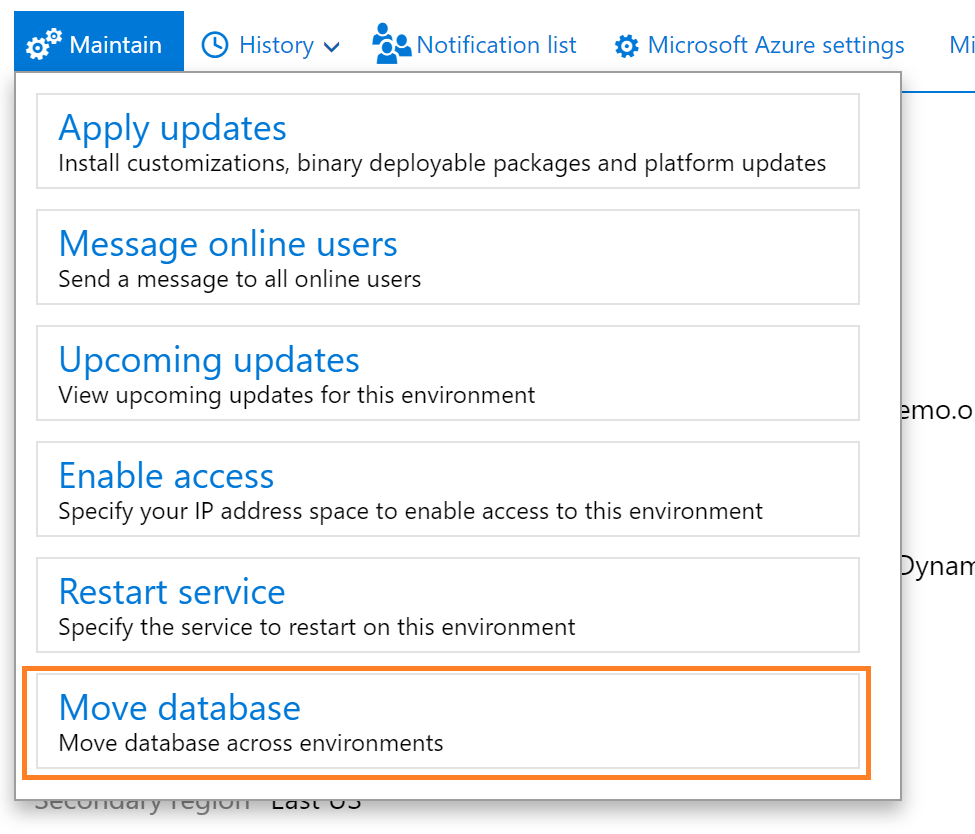
  1. Go to the Environment Details page for your target Sandbox, and select Maintain > Move database button.
  2. Select the Point-in-time restore Prod to Sandbox option, and then select the desired point in time.
  3. Make a note of the warnings, and review the list of data elements that aren't copied from the source environment's previous point in time.
  4. The restore operation begins immediately.

 Important

Self-service point in time restore (PITR) is not supported between environments that are on different regions. For more details, refer to the "Known issues" section later in this topic.

Restore operation failure

If the restore operation isn't successful, you can do a rollback. If you select the Rollback option after the operation originally fails, your target sandbox environment is restored to the state that it was in before the refresh began. Rollbacks are made available by the PITR capability of Azure SQL Database. They are typically required if a customization that is present in the target sandbox environment can't complete a database synchronization with the newly refreshed data.

To determine the root cause of the failure, use the available buttons to download the runbook logs before you start the rollback operation.

Data elements that aren't copied during restore copy

When you refresh a production environment to a sandbox environment, or a sandbox environment to another sandbox environment, some elements of the database aren't copied over to the target environment. Here are some examples:

  • Email addresses in the LogisticsElectronicAddress table.
  • Batch job history in the BatchJobHistory, BatchHistory, and BatchConstraintHistory tables.
  • Simple Mail Transfer Protocol (SMTP) Relay server in the SysEmailParameters table.
  • Print Management settings in the PrintMgmtSettings and PrintMgmtDocInstance tables.
  • Environment-specific records in the SysServerConfig, SysServerSessions, SysCorpNetPrinters, SysClientSessions, BatchServerConfig, and BatchServerGroup tables.
  • Document attachments in the DocuValue table. These attachments include any Microsoft Office templates that were overwritten in the source environment.
  • All users except the admin will be set to Disabled status.
  • All batch jobs will be set to Withhold status.
  • All users will have their partition value reset to the "initial" partition record ID.
  • All Microsoft-encrypted fields will be cleared, because they can't be decrypted on a different database server. An example is the Password field in the SysEmailSMTPPassword table.

Some of these elements aren't copied because they are environment-specific. Examples include BatchServerConfig and SysCorpNetPrinters records. Other elements aren't copied because of the volume of support tickets. For example, duplicate emails might be sent because SMTP is still turned on in the UAT environment, invalid integration messages might be sent because batch jobs are still enabled, and users might be enabled before admins can perform post-refresh cleanup activities.

Environment administrator

The system administrator account in the target environment (that is, the account that has a UserId value of Admin) is reset to the value that is found in the web.config file in the target environment. This value should match the value of the administrator account in LCS. To preview this account, go to the Environment Details page for your target sandbox environment in LCS. The value that was selected in the Environment Administrator field when the environment was first deployed is updated so that it matches the system administrator account in the transactional database. Therefore, the tenant of the environment will also be the tenant of the environment administrator.

If you've used the Admin User Provisioning Tool on your environment to change the value in the web.config file, that value might not match the value in LCS. If you require that a different account be used, you must deallocate and delete the target sandbox environment, and then redeploy it and select another account. You can then perform another refresh database action to restore the data.

An environment can't be refreshed from one tenant to another. This restriction applies even to .onmicrosoft.com tenants. You should make sure that the admin accounts in the source and target environments are from the same tenant domain.

Conditions for doing a PITR copy of a production environment to a sandbox environment

Here is the list of requirements and conditions of operation for a database refresh:

  • A refresh performs a delete operation on the original target database.
  • The target environment will be available until the database copy has reached the target server. After that point, the environment will be offline until the refresh process is completed.
  • The refresh will affect only the application and Financial Reporting databases.
  • Documents in Azure Blob storage aren't copied from one environment to another. Therefore, attached document handling documents and templates won't be changed and will remain in their current state.
  • All users except the Admin user and other internal service user accounts will be unavailable. Therefore, the Admin user can delete or obfuscate data before other users are allowed back into the system.
  • The Admin user must make required configuration changes, such as reconnecting integration endpoints to specific services or URLs.
  • All data management integration jobs that have recurring import and export enabled must be fully processed and stopped in the target system before the restore is started. In addition, we recommend that you select the database from the source after all recurring import and export jobs have been fully processed. In this way, you ensure that there are no orphaned files from either system in Azure storage. This step is important because orphaned files can't be processed after the database is restored in the target environment. After the restore, the integration jobs can be resumed.
  • Business events end points must be deleted and reconfigured in the environment where the database is restored to ensure the same end points are not used. This will also require the business events to be deactivated and re-activated to the new end points that were configured in the environment.
  • Any user who has the Project owner or Environment manager role in LCS will have access to the SQL and machine credentials for all non-production environments.
  • The databases must be hosted in the same Azure geographic region, unless the databases are Spartan-managed. Databases are Spartan-managed when you see 'spartan' as part of the fully qualified SQL server address.
  • The allocated database capacity of the source environment must be less than the maximum database capacity of the target environment.

Steps to complete after a restore is done for environments that use Commerce functionality

 Important

Some environment-specific records are not included in automated database movement operations and require additional steps. These include the following:

  • Commerce self-service installer references
  • Commerce Scale Unit channel database configuration records

If you copy a database between environments, Commerce capabilities in the destination environment will not be fully functional until you perform the following additional steps.

Initialize Commerce Scale Units

If you are moving a database to a sandbox UAT or production environment, you must Initialize Commerce Scale Unit after the database movement operation is complete. The Commerce Scale Unit's association from the source environment will not copy over to the destination environment.

Synchronize Commerce self-service installers

To be able to access Commerce self-service installers in HQ, you must Synchronize self-service installers after the database movement operation is complete.

 Important

The Environment re-provisioning step has now been fully automated as part of database movement operations, and no longer needs to be run manually. The Environment re-provisioning tool is still available in the Asset Library and may be used in certain situations to mitigate error conditions.

To run the Environment re-provisioning tool on the destination environment, run the following steps:

  1. In your project's Asset Library, in the Software deployable packages section, select Import.
  2. From the list of shared assets, select the Environment Reprovisioning Tool.
  3. On the Environment details page for your destination environment, select Maintain > Apply updates.
  4. Select the Environment Reprovisioning tool that you uploaded earlier, and then select Apply to apply the package.
  5. Monitor the progress of the package deployment.

For more information about how to apply a deployable package, see Create deployable packages of models. For more information about how to manually apply a deployable package, see Install deployable packages from the command line.

Re-activate POS devices

If you use point of sale (POS) devices, after you import a database you must activate the POS devices again. Previously activated devices in the destination environment will no longer function. For more information, see Point of sale device activation.

Known issues

Restore is denied for environments that run Platform update 20 or earlier

The database refresh process can't currently be completed if the environment is running Platform update 20 or earlier. For more information, see the list of currently supported platform updates.

The source and target environments have incompatible versions of Financial Reporting

The database refresh process (self-service or via a service request) can't be successfully completed if the version of Financial Reporting in your target environment is earlier than the version in your source environment. To resolve this issue, update both environments so that they have the latest version of Financial Reporting.

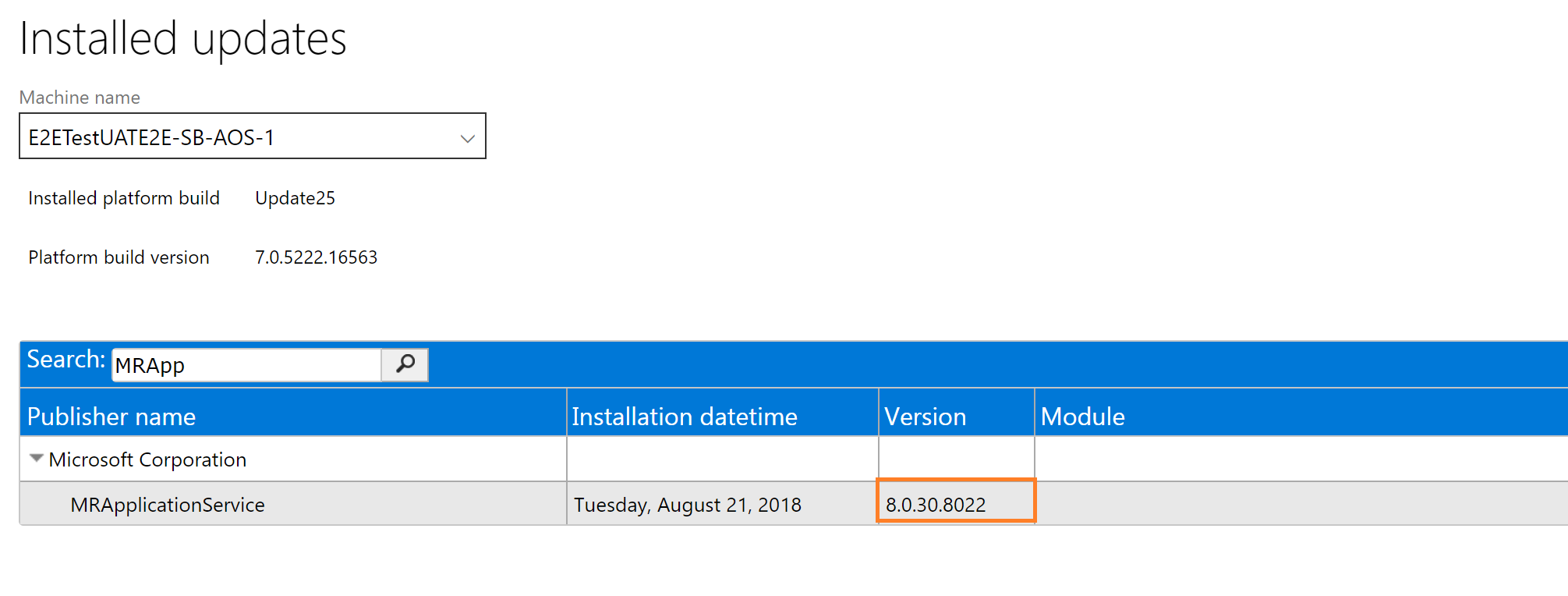
To determine the version that is installed in your source and target environments, select View detailed version information on the Environment Details page. Then search for MRApplicationService, and make sure that the version in the target environment is later than or the same as the version in the source environment.
Restore D365 Production database Finance and Operations,d365 fno restore prod environment database,restore prod database to sandbox,

Customers that are using version 8.1 or later should follow these steps.

  1. Go to the Update tiles for your UAT environment. Save the updates to your Project asset library.
  2. Apply the package to your UAT environment.
  3. Verify that the error has been resolved.

Customers that are using version 8.0 or earlier should follow these steps.

  1. Review the environment history of your source environment. Specifically, look for any "Platform and application binary package" package that has been deployed to the source environment but not to the target environment.
  2. Apply the binary package to your target environment.
  3. Verify that the error has been resolved.

The source and target environments have incompatible application versions

The database refresh process (self-service or via service request) can't be completed if the application release of your source environment and the application release of your target environment aren't the same. Because the data upgrade process isn't run by using database movement operations such as refresh, data loss can occur.

If you're upgrading your sandbox UAT environment to a newer application version (for example, from 7.3 to 8.1), be sure to perform the database refresh action before you start the upgrade. After your sandbox environment is upgraded to the newer version, you can't restore an older production environment database to the sandbox UAT environment.

Conversely, if your production environment is newer than your target sandbox environment, you must either upgrade the target sandbox environment before the refresh, or just deallocate, delete, and redeploy the environment before you do the refresh.

The source and target are on different infrastructure (Microsoft-managed vs. self-Service)

The PITR process is not supported between Microsoft-managed and self-service environments across different regions. For example, if the production environment is Microsoft-managed and in East US2 and a PITR is needed to the sandbox environment, which is self-service and in East US, PITR is not supported. The alternative is to move the production environment to self-service or opt for a regular database refresh instead.

Point in time restore between source and target that are both on self-Service, in different regions

The PITR process is not supported between self-service environments across different regions. For example, if the production environment is in East US and a PITR is needed for the sandbox environment, which is self-service and in West Europe, PITR is not supported. The alternative is to get both the environments in the same region or opt for a regular database refresh instead.

D365 LCS Point in Time restore database dynamics FnO

D365 LCS Point in Time restore database dynamics FnO

You can use Microsoft Dynamics Lifecycle Services (LCS) to perform the point-in-time restore (PITR) for a sandbox user acceptance testing (UAT) environment. Microsoft maintains automated backups of the business and financial reporting databases for 28 days for Production environments and 14 days for Sandbox environments.

Self-service point-in-time restore

To restore the database of a standard user acceptance test (UAT) environment to a previous point-in-time, follow the steps outlined below:

  1. Go to your target sandbox Environment Details page, and select the Maintain > Move database menu option.
  2. Select the Point-in-time restore option and choose a point-in-time.
  3. Note the warnings. Review the list of data elements that are not copied over from the previous point-in-time.
  4. The restore operation will begin immediately.

Restore operation failed

In the event of failure, the option to do a rollback is available. If you select the rollback option after the operation originally fails, your target sandbox environment is restored to the state that it was in before the restore began. A rollback is often required if a customization that is present in the target sandbox environment can't complete a database synchronization with the newly restored data.

To determine the root cause of the failure, download the runbook logs using the available buttons before starting the rollback operation.

Data elements that need attention after restore

When you restore a database from a previous point in time, keep in mind that the database is provided "as was." For example, batch jobs and other data elements in the system can be in an in-progress state. These elements will require manual review.

Environment administrator

The system administrator account in the target environment (that is, the account that has a UserId value of Admin) is reset to the value that is found in the web.config file in the target environment. This value should match the value of the administrator account in LCS. To preview which account will be used, go to the Environment Details page for your target sandbox environment in LCS. The value that was selected in the Environment Administrator field when the environment was first deployed is updated to the system administrator in the transactional database. The tenant of the environment will be the tenant of the environment administrator.

If you've used the Admin User Provisioning Tool in your environment to change the value in the web.config file, the value might not match the value in LCS. If you require a different account, you must deallocate and delete the target sandbox environment, and then redeploy it by selecting another account. You can then do another refresh database action to restore the data.

Steps to complete after a database restore for environments that use Commerce functionality

 Important

Some environment-specific records are not included in automated database movement operations and require additional steps. These include the following:

  • Commerce self-service installer references
  • Commerce Scale Unit channel database configuration records

If you copy a database between environments, Commerce capabilities in the destination environment will not be fully functional until you perform the following additional steps.

Initialize Commerce Scale Units

If you are moving a database to a sandbox UAT or production environment, you must Initialize Commerce Scale Unit after the database movement operation is complete. The Commerce Scale Unit's association from the source environment will not copy over to the destination environment.

Synchronize Commerce self-service installers

To be able to access Commerce self-service installers in HQ, you must Synchronize self-service installers after the database movement operation is complete.

 Important

The Environment re-provisioning step has now been fully automated as part of database movement operations, and no longer needs to be run manually. The Environment re-provisioning tool is still available in the Asset Library and may be used in certain situations to mitigate error conditions.

To run the Environment re-provisioning tool on the destination environment, run the following steps:

  1. In your project's Asset Library, in the Software deployable packages section, select Import.
  2. From the list of shared assets, select the Environment Reprovisioning Tool.
  3. On the Environment details page for your destination environment, select Maintain > Apply updates.
  4. Select the Environment Reprovisioning tool that you uploaded earlier, and then select Apply to apply the package.
  5. Monitor the progress of the package deployment.

For more information about how to apply a deployable package, see Create deployable packages of models. For more information about how to manually apply a deployable package, see Install deployable packages from the command line.

Re-activate POS devices

If you use point of sale (POS) devices, after you import a database you must activate the POS devices again. Previously activated devices in the destination environment will no longer function. For more information, see Point of sale device activation.

Known issues

Breaking the chain of available restore points

Several frequently used actions create a new database that won't have the same restore point history as the previously used database. These actions include point-in-time restores, database refreshes, database imports, and point-in-time restores from the production environment to the sandbox environment. In addition, if a software deployable package that you apply to your environment fails during update of the database, and you use the rollback functionality in LCS, the rollback functionality does a point-in-time restore of the database, and that restore also creates a new database.

Although the new database doesn't have any restore point history, it does begin to accrue new restore points from that time onward. After you perform any of the previously mentioned actions, you can't perform it again by using the same restore date and time.

Restore is denied for environments that run Platform update 20 or earlier

The restore database process cannot be completed if the environment is running Platform update 20 or earlier. For more information, see the list of currently supported Platform updates in the Software lifecycle policy and cloud releases.

Import a database in D365 finance and operations Fno

 Import a database

You can use Microsoft Dynamics Lifecycle Services (LCS) to import a golden configuration database into a sandbox user acceptance testing (UAT) environment.

Self-service import database

To import a database that is prepared from a developer environment to a standard user acceptance test (UAT), or a database previously exported from a UAT environment, follow the steps outlined below:

  1. Go to your target sandbox Environment Details page, and select the Maintain > Move database menu option.
  2. Select Import database and choose your source database backup (.bacpac format) file from the Asset Library.
  3. Note the warnings. Review the list of data elements that are cleaned up from the backup file.
  4. The import operation will begin immediately.

 Note

All users except the Admin user and other internal service user accounts will be unavailable after import. Therefore, the Admin user can delete or obfuscate data before other users are allowed back into the system.

To import a database to a developer environment after you've downloaded a database backup (.bacpac) file, you can begin the manual import operation on your Tier 1 environment. When you import the database, we recommend that you follow these guidelines:

  • Keep a copy of the existing AxDB database, so that you can revert to it later if needed.
  • Import the new database under a new name, such as AxDB_fromProd.

To ensure the best performance, copy the *.bacpac file to the local computer that you're importing from. Download sqlpackage .NET Core for Windows from Get sqlpackage .NET Core for Windows. Open a Command Prompt window, and run the following commands from the sqlpackage .NET Core folder.


SqlPackage.exe /a:import /sf:D:\Exportedbacpac\my.bacpac /tsn:localhost /tdn:<target database name> /p:CommandTimeout=1200

Here is an explanation of the parameters:

  • tsn (target server name) – The name of the Microsoft SQL Server instance to import into.
  • tdn (target database name) – The name of the database to import into. The database should not already exist.
  • sf (source file) – The path and name of the file to import from.

 Note

During import, the user name and password aren't required. By default, SQL Server uses Microsoft Windows authentication for the user who is currently signed in.

For information about how to complete the manual import operations into a Tier 1 environment, see Import the database.

Import operation failure

If the import operation isn't successful, you can do a rollback. If you select the Rollback option after the initial failure of the operation, your target sandbox environment is restored to the state that it was in before the import began. The rollback operation is made available by the Microsoft Azure SQL Database point-in-time restore capability for restoring the database. Rollback is often required if a customization that is present in the target sandbox can't complete a database synchronization with the newly imported data.

Data elements that require attention after import

Specific activities must be completed when you import a database backup into a sandbox UAT environment. Here are some examples:

  • Make sure that the source database contains only a single record in the Partitions table.
  • Make sure that email capabilities are correctly reconfigured or turned off, according to your requirements.
  • Make sure that integration settings are turned on or off, according to your requirements.
  • Make sure that Application Object Server (AOS) servers are added back to required batch groups.
  • Make sure that system Help and task guides are reconnected.
  • Make sure that batch jobs are set to a status of Waiting.
  • Make sure that users are re-enabled.

Environment admin

The system admin account in the target environment (Admin user ID) is reset to the value that is found in the web.config file in that environment. This account should be the same as the admin account from LCS. To preview which account this account will be, visit the Environment details page for your target sandbox in LCS. The value that was selected in the Environment Administrator field when the environment was first deployed is updated to the system admin in the transactional database. Therefore, the tenant of the environment will be the tenant of the environment admin.

If you've used the Admin User Provisioning Tool on your environment to change the web.config file, the value might not match the value in LCS. If you require that a different account be used, you must deallocate and delete the target sandbox, redeploy, and select another account. You can then do another database refresh action to restore the data.

Export a database in D365 finance and operations Fno

 Export a database

Microsoft Dynamics Lifecycle Services (LCS) is used to export a database from a sandbox user acceptance testing (UAT) environment to the Asset library.

Self-service export database

From your sandbox Environment Details page, click the Maintain menu, and then select Move database.

Export a database,lcs d365 export database,DYNAMICS 365 FNO,d365 LCS export database,

A slider pane will open on the page where you can use the Export database action.

Export database menu

The environment will be unavailable for other servicing operations, such as Sandbox refresh or package deployment during this time. The source environment will be usable from a Dynamics user perspective.

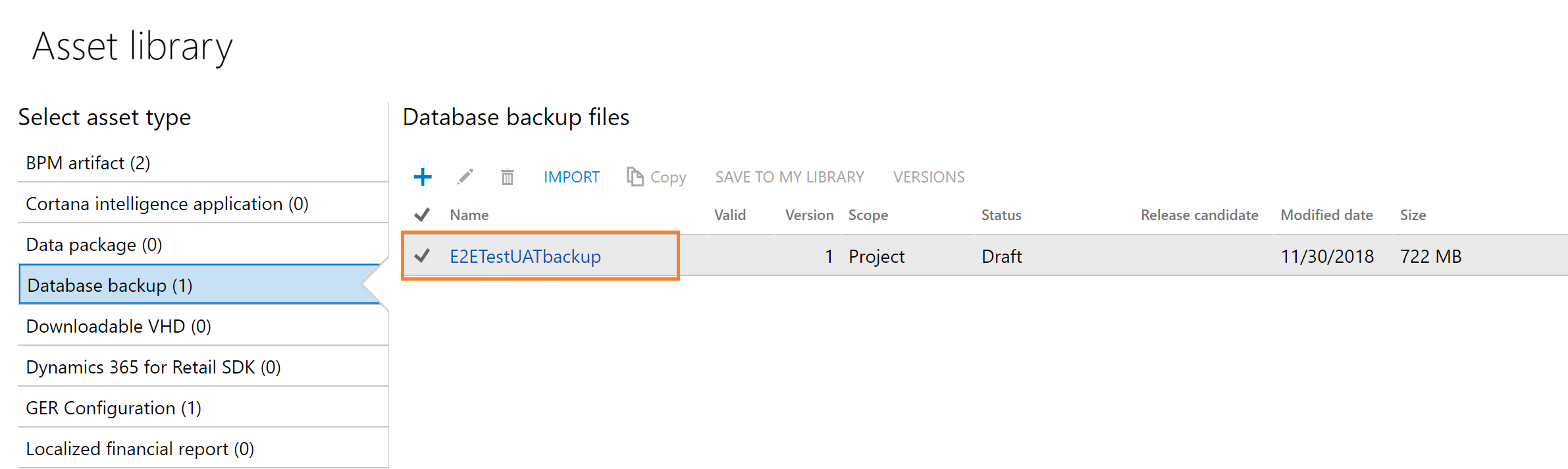
After the export operation completes successfully, sign out of the servicing operation on your Environment details page. You can then see the asset in your Asset Library in the Database backups section.

Asset library backup files

The .bacpac files are stored here and can be manually downloaded to your Tier 1 developer environments for import. In the future, Microsoft will provide APIs to trigger the export action, as well as list the available backup files in your asset library. This includes the secured URL for automatically downloading a backup asset file or copying it directly to your secure blob storage using Microsoft Azure Storage SDKs.

Maximum limit 50 GB on exported bacpacs

To maintain the system that performs database export from LCS, a limit on the maximum bacpac size is being imposed. This limit is set at 50 GB for each bacpac exported. The reasons for this limit include:

  • A centralized system is performing the exports for multiple customers in the same geographic region, and this system has constraints on disk space.
  • Azure SQL neatly compresses the data in the bacpac format and in many cases, where customers exceed 50 GB, customizations or binary data drastically oversize the backup file.

If you experience an export failure because the resulting bacpac is over 50 GB in size, try running the following SQL script against your sandbox database to identify the top 15 tables by size in megabytes. Any tables that are for data entity staging (they will have "staging" at the end of the table name) can be truncated. Any tables that are storing binary or blob data (JSON/XML/binary) should either be truncated or the contents of that field should be deleted to free up space. Binary data cannot be compressed, so storing large volumes of data in the database itself will cause you to quickly reach the 50 GB limit.

SQL
USE [YourDBName] -- replace your dbname
GO
SELECT top 15
s.Name AS SchemaName,
t.Name AS TableName,
p.rows AS RowCounts,
CAST(ROUND((SUM(a.used_pages) / 128.00), 2) AS NUMERIC(36, 2)) AS Used_MB,
CAST(ROUND((SUM(a.total_pages) - SUM(a.used_pages)) / 128.00, 2) AS NUMERIC(36, 2)) AS Unused_MB,
CAST(ROUND((SUM(a.total_pages) / 128.00), 2) AS NUMERIC(36, 2)) AS Total_MB
FROM sys.tables t
INNER JOIN sys.indexes i ON t.OBJECT_ID = i.object_id
INNER JOIN sys.partitions p ON i.object_id = p.OBJECT_ID AND i.index_id = p.index_id
INNER JOIN sys.allocation_units a ON p.partition_id = a.container_id
INNER JOIN sys.schemas s ON t.schema_id = s.schema_id
GROUP BY t.Name, s.Name, p.Rows
ORDER BY Total_MB DESC
GO

Export operation failure

Most often, export operations fail because the process in LCS times out while it's waiting for a response from Microsoft Azure SQL Database. You can use the Resume button to reconnect LCS to the ongoing export process and see it through to completion. If more than 24 hours have passed since you began the export, the pending asset in the LCS Project asset library will be expired. In this case, you must roll back the export operation and restart it.

To cancel an export operation that has failed, you can use the Rollback button.

Data elements that aren't exported

When you export a database backup from an environment, some elements of the database aren't exported in the backup file. Here are some examples:

  • Email addresses in the LogisticsElectronicAddress table.
  • Batch job history in the BatchJobHistory, BatchHistory, and BatchConstraintsHistory tables.
  • SMTP Relay server in the SysEmailParameters table.
  • Print Management settings in the PrintMgmtSettings and PrintMgmtDocInstance tables.
  • Environment-specific records in the SysServerConfig, SysServerSessions, SysCorpNetPrinters, SysClientSessions, BatchServerConfig, and BatchServerGroup tables.
  • Document attachments in the DocuValue table. These attachments include any Microsoft Office templates that were overwritten in the source environment.
  • All users except the admin will be set to Disabled status.
  • All batch jobs are set to Withhold status.
  • All users will have their partition value reset to the "initial" partition record ID.
  • All Microsoft-encrypted fields will be cleared, because they can't be decrypted on a different database server. An example is the Password field in the SysEmailSMTPPassword table.

Known issues

Export ran for some time and then reached a "Preparation failed" state

The export process can time out on Azure SQL Database when large databases are involved. In some cases, the export process can be recovered by using the Resume action from LCS. The Lifecycle Services team is working to identify known error codes, so these can be added to the logs for the export database operation to help guide users toward a resolution. These known error codes will be added in a future release of LCS.

Export doesn't show any progress in LCS

The export process differs from other database movement operations, and the general package deployment doesn't use a runbook. Therefore, the progress indicator in LCS doesn't show any output, even though it typically shows output in other scenarios. The LCS team is working to identify known error codes so that they can be added to the logs for the export database operation to help guide users toward a resolution. These known error codes will be added in a future release of LCS.

Blog Post 6: Bonus – Building Your First Custom Copilot Plugin in X++

Blog Post 6: Bonus – Building Your First Custom Copilot Plugin in X++  Introduction In our previous posts, we explored what Copilot can do o...