Tuesday, 6 April 2021

Auto refresh Entity store enabled in Data Lake integration

Auto refresh Entity store enabled in Data Lake integration


Automated Entity store refresh

You need to enable automated Entity store refresh before enabling Data Lake integration.

  1. Go to System administration > Set up > Entity store.

    On the Entity store page, a message indicates that you can switch to the Automated Entity store refresh option. This option is managed by the system. An admin doesn't have to schedule or monitor the Entity store refresh.

  2. Select Switch now.

     Important

    This action isn't reversible. After you switch to the Automated Entity store refresh option, you can't revert to the old user interface (UI) experience.

  3. Select Yes to continue.

You will now see the new experience.

New UI experience

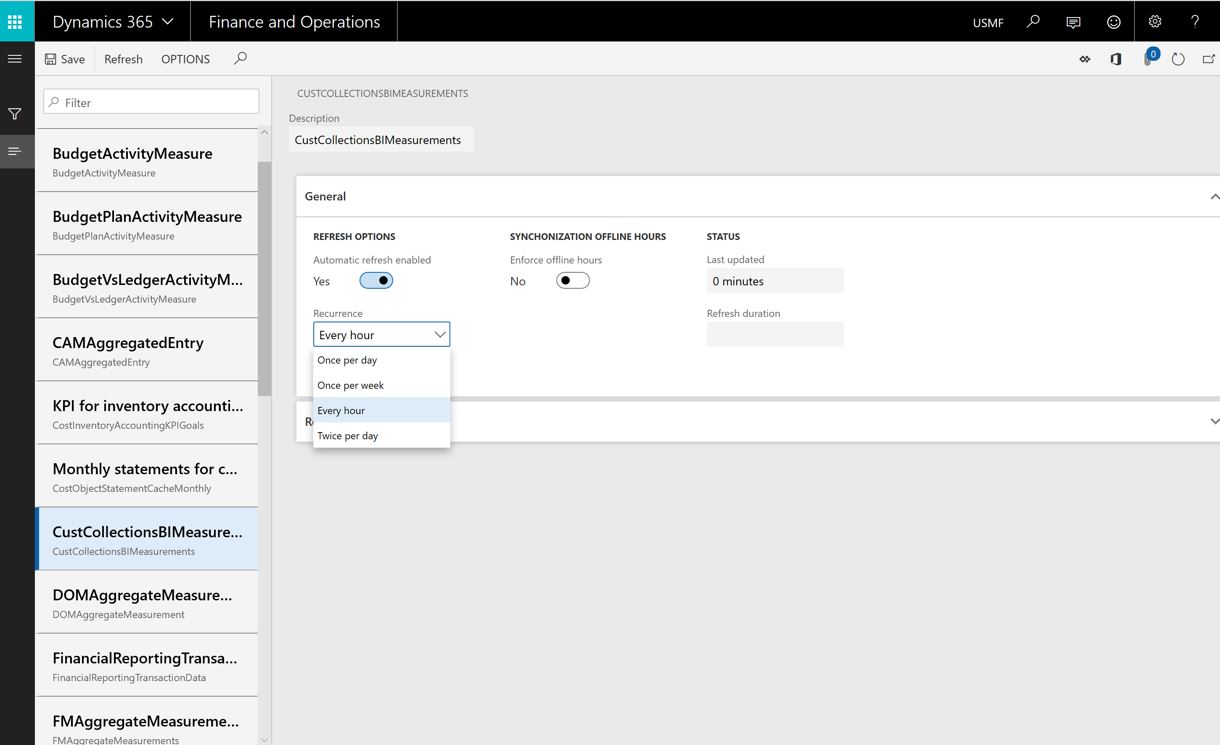
After the new experience is turned on, you can define the refresh for each aggregate measurement. The following refresh options are available:

  • Every hour
  • Twice a day
  • Once a day
  • Once a week

In addition, an admin can refresh any aggregate measurement on demand by selecting the Refresh button. Additional options will be added in future platform updates. These options will include options for real-time refresh.

 Important

When the automated refresh is enabled, in some cases the system may disable refresh of Aggregate measurements. You must revisit aggregate measurements and validate that appropriate refresh intervals have been applied by the system.

Entity store data in Azure Data Lake (full push and trickle feed)

 Important

This feature is currently in public preview. Do not enable this feature in production environments.

When this feature is turned on, Entity store data isn't populated in the relational Entity store database in the Microsoft subscription. Instead, it's populated in an Azure Data Lake Storage Gen2 account in your own subscription. You can use the full capabilities of PowerBI.com and other Azure tools to work with Entity store.

Before you start, you must complete these tasks in the Azure portal.

  1. Create storage accounts. Provision a storage account in the same data center where your environment is provisioned. Make a note of the connection string for the storage account, because you will have to provide it later.
  2. Create a Key Vault and a secret. Provision Azure Key Vault in your own subscription. You will need the Domain Name System (DNS) name of the Key Vault entry that you created. Also add a secret to Key Vault. As the value, specify the connection string that you made a note of in the previous task. Make a note of the name of the secret, because you will have to provide it later.
  3. Register the app. Create an Azure Active Directory (Azure AD) application, and grant application programming interface (API) access to Key vault. Make a note of the application ID and its application key (secret), because you will have to provide them later.
  4. Add a service principal to Key Vault. In Key Vault, use the Access policies option to grant the Azure AD application Get and List permissions. In this way, the application will have access to the secrets in Key Vault.

The following sections describe each task in more detail.

Create storage accounts

  1. In the Azure portal, create a new storage account.

  2. In the Create storage account dialog box, provide values for the following parameter fields:

    • Location: Select the data center where your environment is located. If the data center that you select is in a different Azure region, you will incur additional data movement costs. If your Microsoft Power BI and/or your data warehouse is in a different region, you can use replication to move storage between regions.
    • Performance: We recommend that you select Standard.
    • Account kind: You must select StorageV2.
  3. In the Advanced options dialog box, you will see the Data Lake storage Gen2 option. Select Enable under the Hierarchical namespaces feature. If you disable this option, you can't consume data written by Finance and Operations apps with services such as Power BI data flows.

  4. Select Review and create. When the deployment is completed, the new resource will be shown in the Azure portal.

  5. Select the resource, and then select Settings > Access keys.

  6. Make a note of the connection string value, because you will have to provide it later.

Create a Key Vault and a secret

  1. In the Azure portal, create a new Key Vault.
  2. In the Create key vault dialog box, in the Location field, select the data center where your environment is located.
  3. After Key Vault is created, select it in the list, and then select Secrets.
  4. Select Generate/Import.
  5. In the Create a secret dialog box, in the Upload options field, select Manual.
  6. Enter a name for the secret. Make a note of the name, because you will have to provide it later.
  7. In the value field, enter the connection string that you obtained from the storage account in the previous procedure.
  8. Select Enabled, and then select Create. The secret is created and added to Key Vault.

Register the app

  1. In the Azure portal, select Azure Active Directory, and then select App registrations.

  2. Select New registration at the top of the menu, and enter the following information:

    • Name - Enter a friendly name for the app.
    • Select Accounts in this Organizational directory only unless your storage account and your Dynamics environment are in different Azure Active Directory domains.
  3. After the application is created, select API permissions.

  4. In the dialog box that appears, select Add a permission.

  5. You will see a dialog box with a list of APIs. In the list, select Azure Key Vault.

  6. Select the Delegated permissions box, select user_impersonation, and then select Add permissions to save your changes.

  7. Select the Certificates & secrets menu on the left navigation pane, and then select New client secret.

  8. In the Description field, enter a name and choose an expiry period. Select Add.

  9. A secret is generated and shown in the Value field.

  10. Immediately copy the secret to the clipboard, because it will disappear within one or two minutes. You will have to provide this key to the application later.

Add a service principal to Key Vault

  1. In the Azure portal, open Key Vault that you created earlier.

  2. Select Access policies, and then select Add to create a new access policy.

  3. In the Select principal field, select the name of the application that you previously registered.

  4. In the Key permissions field, select Get and List permissions.
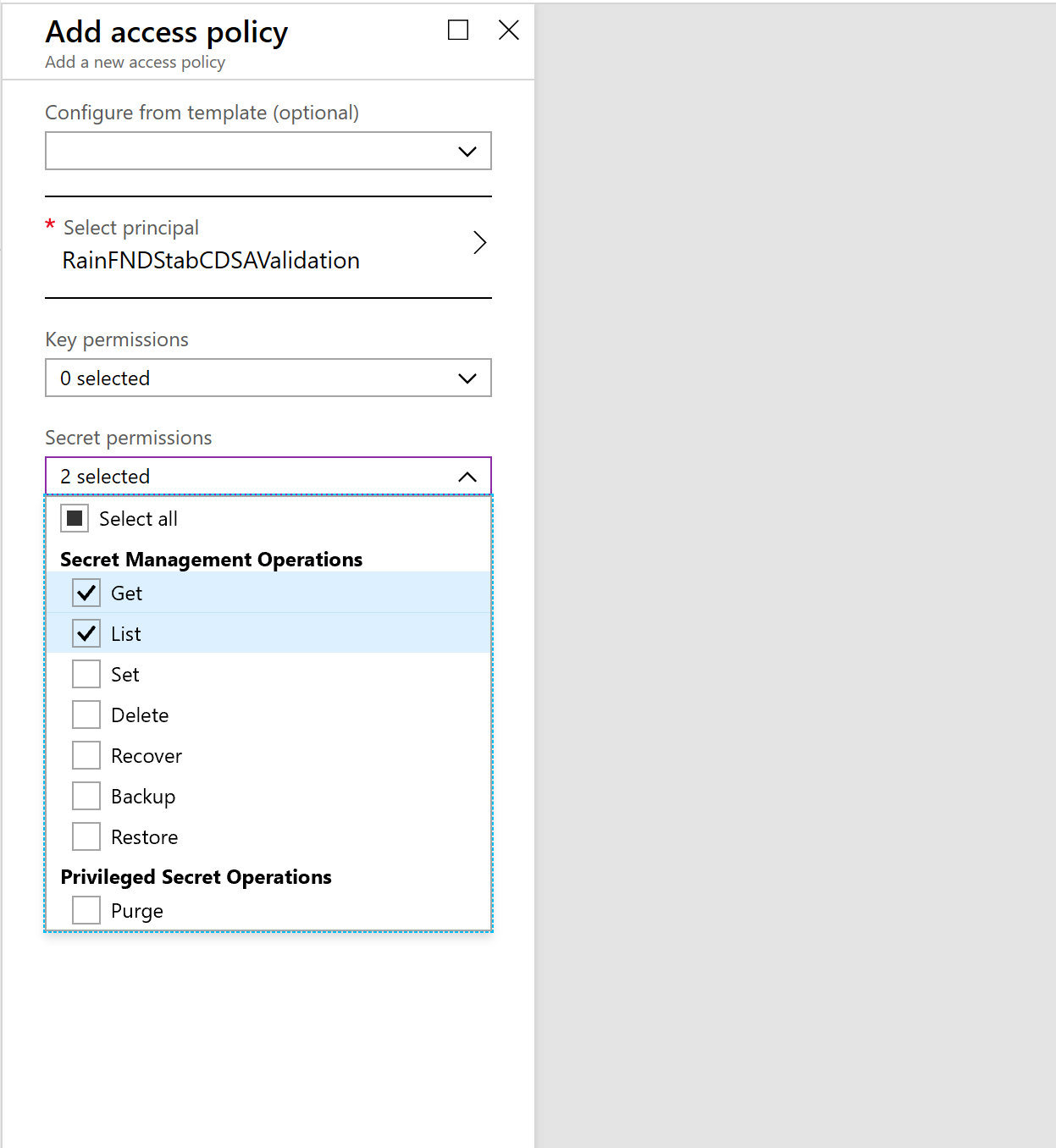
  5. In the Secret permissions field, select Get and List permissions.

    Get and List permissions

  6. Select Save.

Work in Entity store in a Data Lake

  1. Go to System administration > Set up > System parameters.

  2. On the Data connections tab, enter the following information that you made a note of earlier in this topic:

    • Application ID: Enter the application ID of the Azure AD application that you registered earlier.
    • Application Secret: Enter the application key (secret) for the Azure AD application.
    • DNS name: Enter the DNS name of Key Vault.
    • Secret name: Enter the name of the secret that you added to Key Vault together with connection string information.
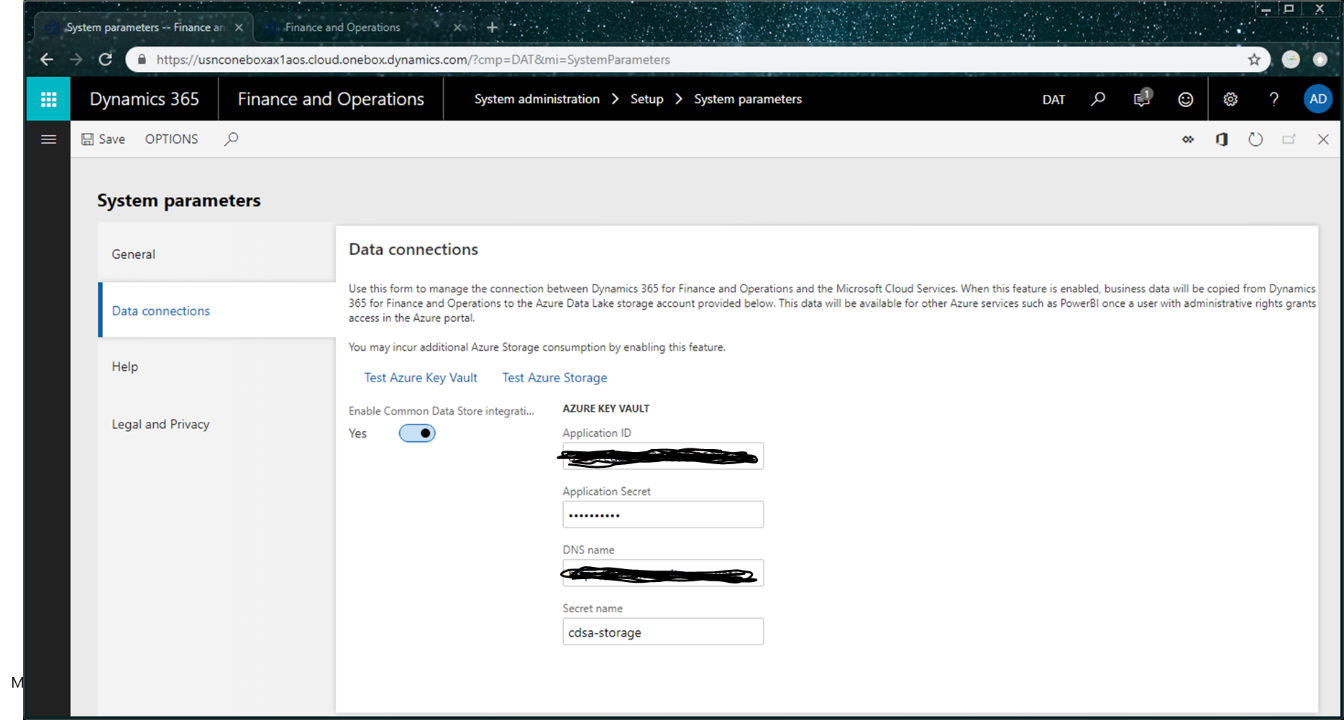
    Data connections tab on the System parameters page

  3. Select the Test Azure Key Vault and Test Azure Storage links to validate that system can access the configuration information that you provided.

  4. Select the Enable data connection check box.

Entity store data should now be populated in the storage location that you provided, not in the relational Entity store database.

The aggregate measurements and refresh options that you select in the Entity store UI should now apply to data that is copied to Data Lake.

Error Azure data lake in D365 fno finance and operations

 Error Azure data lake in D365 fno finance and operations

Export to Data Lake feature is not available in your region and/or your environment at this time

This feature is not available in Tier-1 (developer) environments. You need a sandbox environment (Tier 2 or higher) with Platform updates for version 10.0.13 or higher.

This feature is in limited preview and may not be available in all Azure regions where Finance and Operations apps are available, or this feature may not be available for your environment. If you would like to join a future preview, complete the survey. We will contact you when we are ready to include you. You can also join a Yammer group by completing the survey. You can use the Yammer group to stay in contact and ask questions that will help you understand the feature. We are working hard to make this feature available soon.

Export to Data Lake feature is currently being installed for your environment. Please check back later.

Before you can use this feature, you need to configure the export to Data Lake. For more information, see Configure export to Azure Data Lake.

Export to Data Lake add-in is not installed.

Ask your administrator to install this add-in using Dynamics Lifecycle Services (LCS). Before you can use this feature, you need to configure the export to Data Lake. For more information, see Configure export to Azure Data Lake.

Export to Data Lake feature failed to install in Dynamics Life Cycle Services (LCS).

Ask your administrator to re-install the Export to Data Lake add-in. If this issue persists, contact Support. When you configure the Export to Data Lake feature, the system may report an error. Or, there may be an error when you access the data lake after configuration due to a change in your environments. For more information, see Configure export to Azure Data Lake.

Export to Data Lake feature is temporarily unavailable. Please check back later.

If you see this error for a prolonged period of time, contact Support.

Status codes with extended errors

When an error occurs in a table that you added to Export to Data Lake, you may see an error code in the status column. The following error codes provide the cause of the error and how to correct the issue.

Error status codes 4xx indicate an issue with the table

STATUS CODES WITH EXTENDED ERRORS
Error codeIssueNext steps
400The table you added doesn't contain a RecID field.RecID fields are used by the system to index table data. Tables that don't contain a RecID field can't be added to the Data Lake. If this issue is from a table in a Finance and Operations app, contact Microsoft support. If this table was developed by your partner or ISV, contact the developer to include a RecID field.
401The table you added is missing in the database.The table you added is no longer available in the database and the system can't continue updating data in the lake. The table may have been removed because of a software or database update. Contact your database administrator or a developer. If this table was developed by your partner or ISV, contact the developer.
402The RecID field isn't indexed.The system has detected that the RecID field contained in the table isn't part of an index. This may lead to poor performance in updating the data lake and updates may take longer to reflect in the data lake. If this issue is from a table in a Finance and Operations app, contact Microsoft support. If this table was developed by your partner or ISV, contact the developer.

Error status codes 5xx indicate a system error encountered while exporting data Due to the error, the system has paused data export – data that exists in the lake won’t be updated until the error is resolved. Try to deactivate and activate the table to see if this resolves the issue. Note that deactivating and activating the table may cause the system to re-initialize the data in the lake by taking a full copy. If the issue persists, contact Microsoft support with the table name and the error code.

Error status codes 8xx and 9xx indicate a change to the table or database structure since it was added

TABLE 2
Error codeIssueNext steps
800There is a change in the data table schema.The system found a change in the table structure when adding changed data to the lake. This change is typically the result of a software update or a database modification. For example, when a new field is added to a table, or a field is modified or removed, the data updated in the lake may not be in the same format as the existing data. Because of the error, the system has paused data export. The data that exists in the lake won’t be updated until the error is resolved. Deactivate and activate the table to see if the issue is resolved.
801There is an issue with the Change data capture feature.The Export to Data Lake feature uses the Change data capture feature. Change data can’t be exported because the Change data capture feature is disabled in the Finance and Operations apps database. This may be the result of a database maintenance operation. Deactivate and activate the table to see if the issue is resolved. If the issue persists, contact Microsoft support.
802There is an issue with the Change data capture feature for the table.The Export to Data lake feature uses the Change data capture feature. Change data can’t be exported because the Change data capture feature isn't enabled for this table in your Finance and Operations apps database. This may be the result of a database maintenance operation. Deactivate and activate the table to see if the issue is resolved.
900There is an issue with the Change data capture feature in this environment.The Export to Data lake feature uses the Change data capture feature. Change data can’t be exported because the Change data capture feature isn't enabled for this table in the Finance and Operations apps database. This may be the result of a database maintenance operation. Deactivate and activate the table to see if the issue is resolved. If the issue persists, contact Microsoft support.

 Note

Deactivating and activating the table may cause the system to re-initialize the data in the lake by creating a full copy. If this is a large table, the initialize process may take some time. In the future, the system may automatically update data in the lake to reflect the table structure changes.

Above post from https://docs.microsoft.com//

D365 fno apps data in Azure Data Lake

D365 fno apps data in Azure Data Lake

The Export to Azure Data Lake feature lets you copy data from your Finance and Operations apps into your own Azure Data Lake (Gen 2). The system let's you choose the tables and entities to include. After you select the data that you want, the system will make an initial copy. The system then keeps the selected data up to date by applying changes, deletions, and additions. There may be a delay of a few minutes between data changes in your Finance and Operations apps instances and the time when the data is available in your data lake.

Before you can use this feature, you must configure the Export to Data Lake. For more information, see Configure export to Azure Data Lake.

Turn on the Export Data to Azure Data Lake feature

An administrator must turn on the Export to Azure Data Lake feature before it can be activated. To do this, go to the Feature management workspace, locate and select the Export Data to Azure Data Lake feature, and then select Enable.

After the feature is enabled, you should see the Export to Azure Data Lake option under System administration.

Select data

 Note

If the feature, Export to Azure Data Lake isn't available in the Feature management module in your environment, sign in to the environment and add the following to the URL in your browser address: &mi=DataFeedsDefinitionWorkspace. For example, https://ax123456.cloud.test.dynamics.com/?cmp=USMF&mi=DataFeedsDefinitionWorkspace.

You can select the tables and entities that should be staged in Data Lake.

  1. In your environment, go to System Administration > Export to Azure Data Lake.

  2. Select Configure Data feeds for export to Lake.

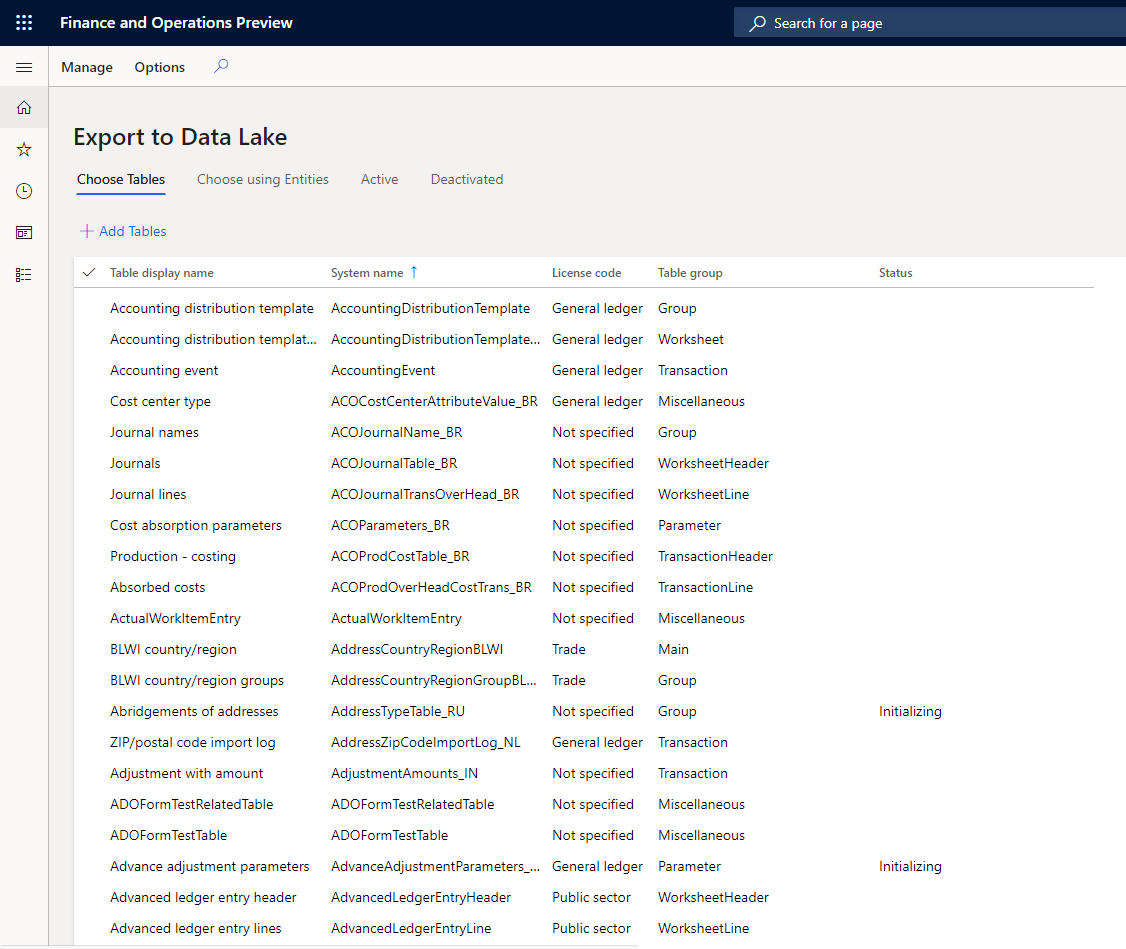
  3. On the Configure data feeds to Data Lake page, on the Choose Tables tab, select the data tables that should be staged in Data Lake. You can search for tables by display name or system name. You can also see whether a table is being synced.

  4. When you've finished, select Add Tables to add the selected tables to Data Lake.

    D365 fno D365 fno apps data in Azure Data Lake,azure data lke configure in Dynamics 365 finance and operations,

  5. Select Activate data feed, and then select OK. The system may show the status of this table as Initializing when you add the table. This means, the system is making an initial copy of data. When the initial copy is complete, the system changes the status to Running

In case of an error, the system shows the status Deactivated. You can consume data in the lake when you see the Running state. If you consume data in the lake while Initializing or Deactivated status, you may not see all the data.

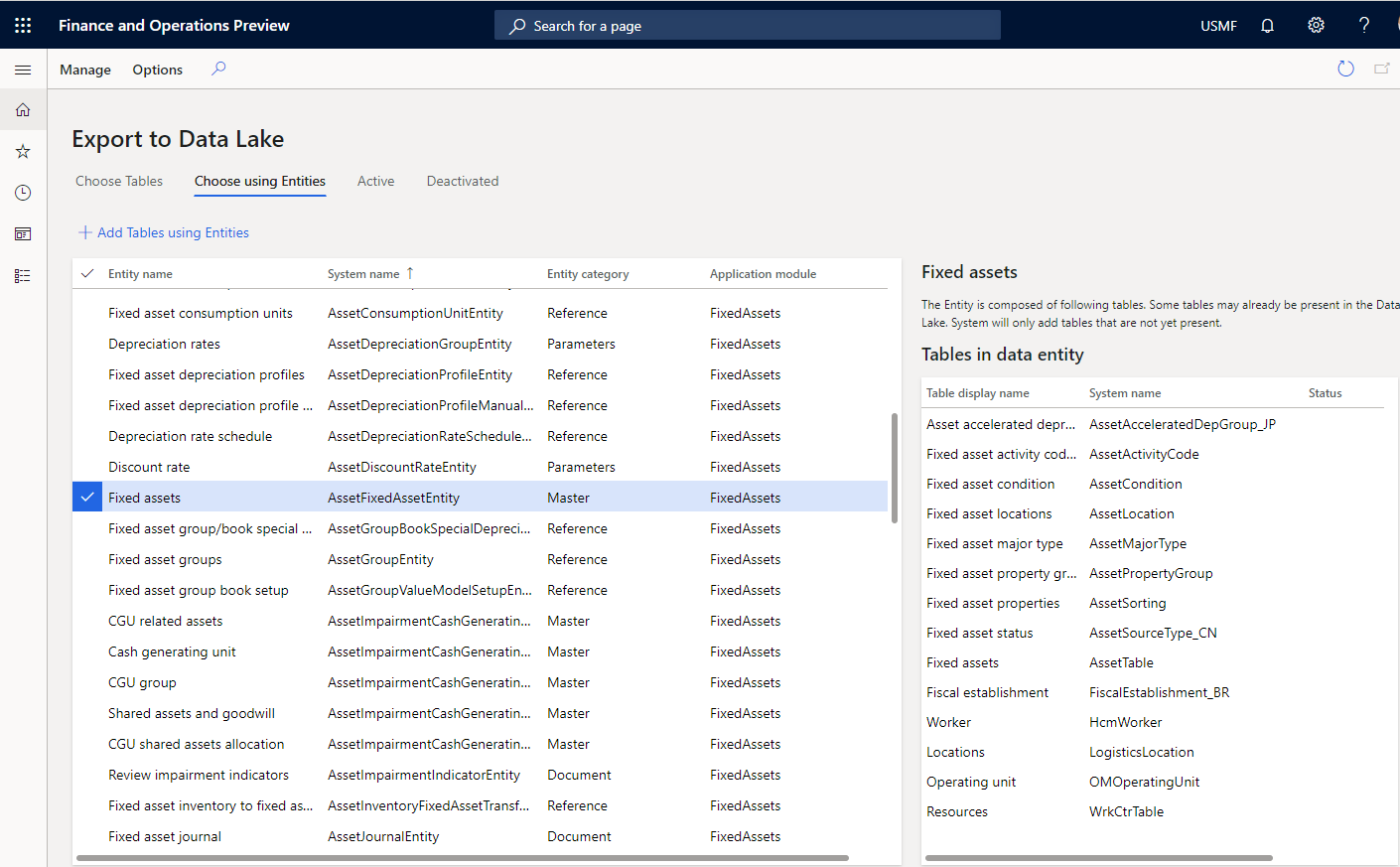
If you aren't familiar with the specific tables that you require, you can select tables by using entities. Entities are a higher-level abstraction of data and might include multiple tables. By selecting entities, you're also selecting the tables that include them.

  1. On the Choose using Entities tab, select the entities, and then select Add Tables using Entities.

    Selecting tables by using entities

    Regardless of the method that you use to select tables, the tables will be staged in Data Lake.

Monitor the tables in Data Lake

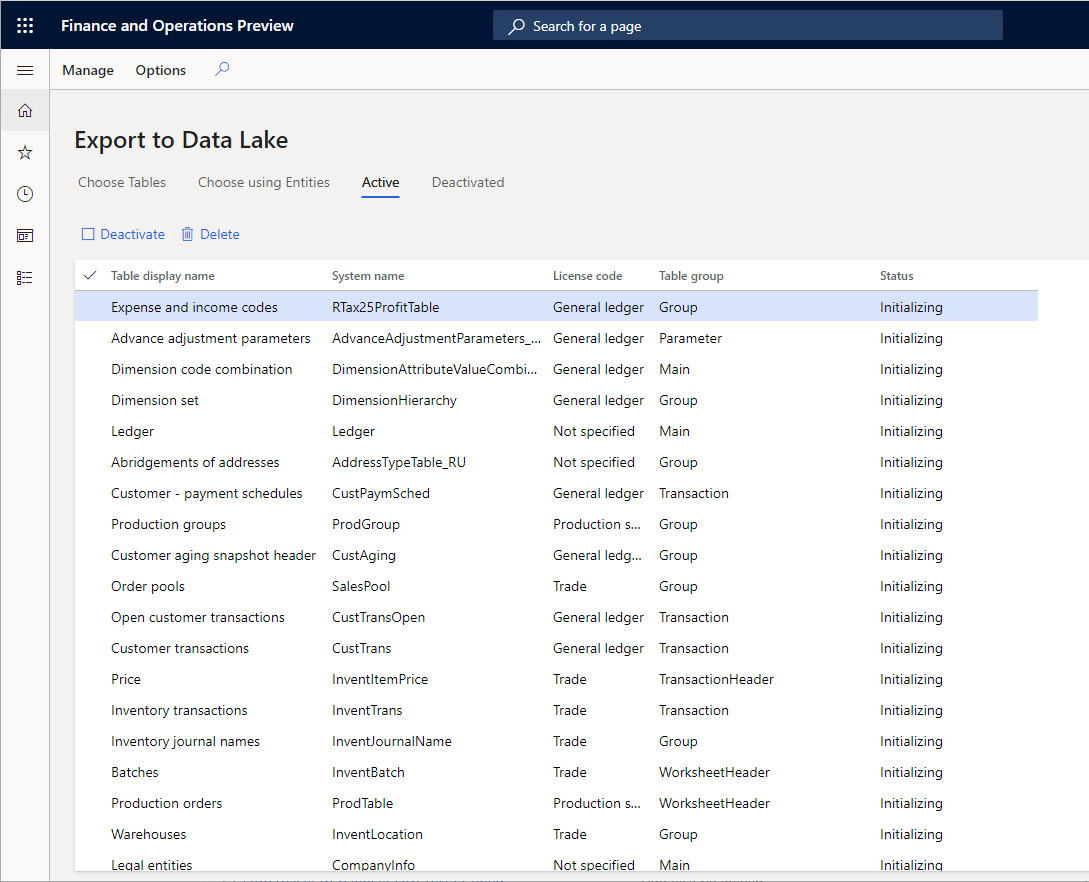
You don't have to monitor or schedule data exports because the system keeps the data updated in Data Lake. However, you can view the status of ongoing data exports on the Active tab on the Configure data feeds to Data lake page.

Monitoring table progress

Troubleshooting common issues and errors

Export to Data Lake feature is not available in your region and/or your environment at this time

This feature is not available in Tier-1 (developer) environments. You need a sandbox environment (Tier 2 or higher) with Platform updates for version 10.0.13 or higher.

This feature is in limited preview and may not be available in all Azure regions where Finance and Operations apps are available, or this feature may not be available for your environment. If you would like to join a future preview, complete the survey. We will contact you when we are ready to include you. You can also join a Yammer group by completing the survey. You can use the Yammer group to stay in contact and ask questions that will help you understand the feature. We are working hard to make this feature available soon.

Above post is taken from https://docs.microsoft.com/

What is Azure Data Lake in D365 f&O

What is Azure Data Lake?

Microsoft Azure Data Lake is a technology in Azure cloud that enables big data analytics and artificial intelligence (AI). When this topic mentions "Data Lake," it's referring specifically to storage technology that is based on Azure Data Lake Storage Gen2.

Data lakes provide cloud storage that is less expensive than the cloud storage that relational databases provide. Therefore, large amounts of data can be stored in the cloud. This data includes both business data that is traditionally stored in business systems and data warehouses, device and sensor data, such as signals from devices. In addition, Data Lake supports a range of tools and programming languages that enable large amounts of data to be reported on, queried, and transformed.

Dynamics 365 products, such as Finance and Operations apps, use Data Lake for AI and analytics scenarios. Therefore, customers can take advantage of the strengths and cost advances that this technology offers. The following sections provide an overview of the scenarios.


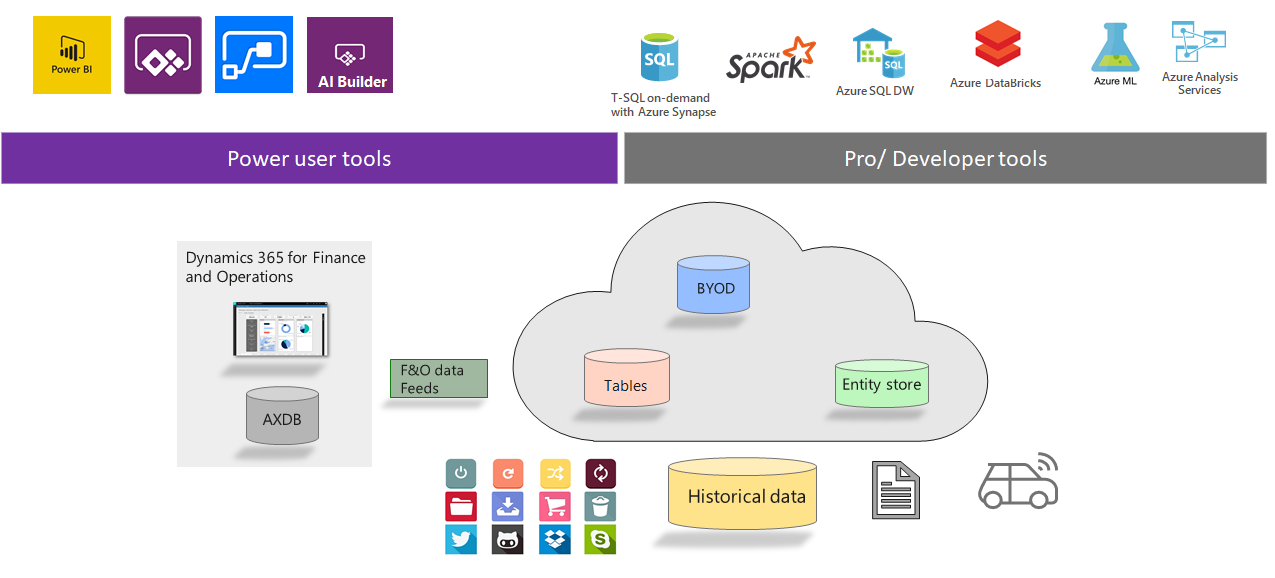
Data Lake combines BYOD and Entity store

Customers use a combination of analytical workspaces (which are based on Entity store) and BYOD for different scenarios. Following table compares the scenarios and capabilities

DATA LAKE COMBINES BYOD AND ENTITY STORE
Analytical workspaces built-on Entity storeData warehouse with Bring your own DB (BYOD)
Near real-time Operational Analytics (with embedded Power BI)Data warehouse with PowerBI.com or other tools
Reporting on data from F&OMash-up F&O data with other data sources
Ready-made reports shipped with F&O or ISV solutionReports extended or authored by partner

Reports authored with both these sources can be pinned into Analytical workspaces in F&O with contextual security and drill thru actions Data Lake combines both these services into a single service that offers the "best of both worlds":

  • Because Data Lake is included in customer subscriptions, you can bring your own data lake and integrate it with Finance and Operations apps. Finance and Operations apps will use your data lake to store Entity store data and operate analytical workspaces. Analytical workspaces continue to work as they worked before.

  • Entity store is staged in your data lake and provides a set of simplified (denormalized) data structures to make reporting easier. Your users can now be given direct access to the data that is most relevant to them, and they can create their own reports by using a tool of their choice.

  • Instead of exporting data by using BYOD, customers can select the data that is staged in the data lake. Data feed service, which is part of Finance and Operations services, keeps the data in the data lake fresh.

  • You can bring your own data into the data lake to supplement the data that Finance and Operations apps provide. This capability allows for easy data mash-up scenarios in the data lake.

    • Data from external sources can easily be ingested into the data lake via hundreds of ready-made connectors that are available in tools such as Power BI dataflows and Azure Data Factory.
    • Historical data and earlier data that is often inherited as a part of the transition to Finance and Operations apps can be ingested directly into the data lake.
    • Data lakes provide options for ingesting non-business data. For example, device data can easily be ingested into the data lake.
  • Cloud-based services let both power users and developers consume this data.

    How power users and developers can use Data Lake


This post have been taken from https://docs.microsoft.com/.

XML is not in correct format-Exception from HRESULT: 0xC0010009

XML is not in correct format-Exception from HRESULT: 0xC0010009

This message covers all XML formatting issues in the file. For example, the data project has mappings for columns that do not exist in the file that is being used for the operation. This error can happen if certain columns were removed from the file and this file is now used. Either fix the mapping in the data project or fix the file to have all the columns as expected.

Error downloading data package for job 'Record for ID - {GUID} not found entity D365

Data package download - Error downloading data package for job ''. Record for ID - {GUID} not found


One of the scenarios where this error can happen is when the environment, such as the dev environment, points to the database in another environment, such as UAT, and the export job is run from the source environment. which is dev in this example. The exported file gets uploaded to the blob storage that is associated with the source environment (dev, in this example). However, this job will also show up in the target environment (UAT) since the database is shared. If you try to download the exported file using the Download file option, this error will display because the file does not exist in the blob storage of the target environment (UAT) from where you are trying to download.

There are field(s) which are not mapped to Entity Error in D365 import

 There are field(s) which are not mapped to Entity Error in D365 import

It is a common practice to use the export functionality to generate the entity template file that can be later used for imports. 
However, while exporting the template, in fixed width format with 'First row header' set to 'No' (in source data formats set up), the exported template will not have the column names. When this file is imported, it will result in this error.

Import to target failed due to an update conflict DMF error entity D365

Import to target failed due to an update conflict as more than one process is trying to update the same record at the same time

When you use recurring imports (enqueue API), if the files are sent to the end point at high frequency and the sequential processing of messages isn't enabled, data management will try to process the files in parallel. When files are processed in parallel, and multiple files have the same record, multiple threads will try to update the same record at the same time. If this is a data issue, you must update the data so that the same records don’t repeat across files. If this is not a data issue and the entity is expected to handle such cases, this might be a bug. For bugs, to mitigate the issue, you can choose to sequentially process the files. If this is not a data issue and the entity is not expected to process in parallel, then this entity must not be subjected to parallel processing. You should enable sequential processing of messages in the recurring job.

Auto refresh Entity store in D365

Auto refresh Entity store 


Overview

Entity store refresh is automated and managed by the system. Administrators do not need to schedule or monitor the Entity store refresh with the system batch schedules. The refresh operation is based on anticipated latency. This functionality is enabled in Platform update 23. As an administrator you do need to opt-in to use this feature.

Enable automated refresh

Complete the following steps to enable automated Entity store refresh.

  1. Go to System administration > Set up > Entity store. On the Entity store page, a message indicates that you can switch to the Automated Entity store refresh option. This option is managed by the system. An admin does not have to schedule or monitor the Entity store refresh.

  2. Select Switch now.

 Important

This action isn't reversible. After you switch to the Automated Entity store refresh option, you can't revert to the old user interface (UI) experience.

  1. Select Yes to continue.

You will now see the new experience.

Auto refresh Entity store  in D365,Refresh entity store in Dynamics 365,d365 entity store auto schedule refresh,

After the new experience is turned on, you can define the refresh for each aggregate measurement. The following refresh options are available:

  • Every hour
  • Twice a day
  • Once a day
  • Once a week

An admin can also refresh any aggregate measurement on demand by clicking the Refresh button. Additional options will be added in future platform updates. These options will include options for real-time refresh.

 Note

When automated refresh is enabled, the system can disable the refresh of aggregate measurements. You must revisit aggregate measurements and validate that appropriate refresh intervals have been applied.

Blog Post 6: Bonus – Building Your First Custom Copilot Plugin in X++

Blog Post 6: Bonus – Building Your First Custom Copilot Plugin in X++  Introduction In our previous posts, we explored what Copilot can do o...